
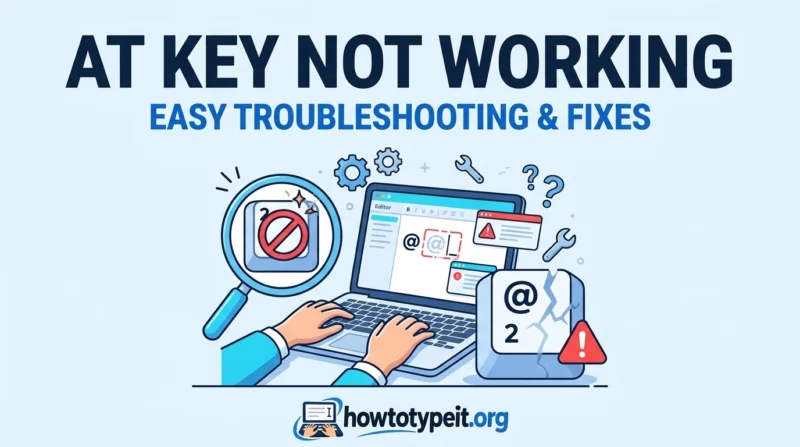
- Keyboard language layout mismatch (most common cause of swapped characters).
- Physical debris or membrane failure beneath the SHIFT or number 2 keys.
- Num Lock disabled while attempting to execute numeric keypad ALT codes.

Understanding Why the At Key Stops Working
When the commercial at symbol fails to register, the issue usually stems from a software mapping conflict rather than permanent physical damage. Modern operating systems handle multiple language inputs dynamically, which can cause keys to swap unexpected assignments without warning.
Hardware vs Software Issues
Hardware failures occur when physical switches, traces, or keycap contacts break. If your SHIFT key or number 2 key functions correctly in other applications like password fields or document editors, the keyboard hardware is likely intact. Software issues, conversely, happen when the operating system interprets keystrokes through an incorrect regional profile, routing SHIFT + 2 to a quotation mark or punctuation mark instead of the @ glyph.
The Role of Keyboard Language Layouts
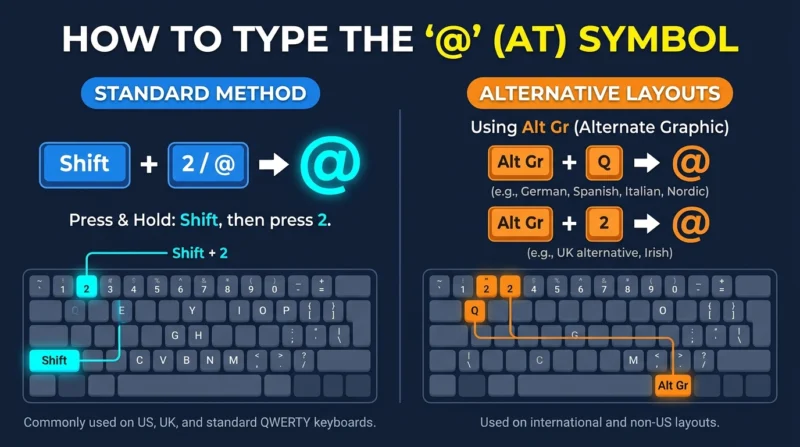
Different regions assign the @ symbol to completely different keys. A US layout maps the symbol to SHIFT + 2. A UK layout shifts it to SHIFT + ' (apostrophe). European layouts often map it to ALT Gr + Q or Option + 2 on Apple hardware. If an accidental hotkey combination triggers a language profile change, your muscle memory will suddenly produce the wrong character.
How to Type the @ Symbol Right Now
If you need to input an email address or code snippet immediately while troubleshooting, use these verified fallback methods:
| Platform / Method | Exact Keystroke Sequence |
|---|---|
| Windows ALT Code (NUMPAD) | Hold ALT + Type 64 on numeric keypad |
| Microsoft Word UNICODE | Type 0040 then press ALT + X |
| Standard US Mac | SHIFT + 2 |
| Alternative Mac / European | Option + 2 |
Windows ALT Codes and Shortcuts
To execute the traditional Windows ASCII shortcut, ensure your physical Num Lock key is active. Hold down the left ALT key and type 64 on the dedicated numeric keypad. Note that top-row number keys do not register ALT codes. In Microsoft Word or Notepad, you can alternatively type the UNICODE HEX value 0040 followed by ALT + X to instantly convert the digits into @.
Mac and Mobile Workarounds
On macOS, standard US keyboards use SHIFT + 2. International Apple layouts may require Option + 2 or SHIFT + '. On iOS and Android virtual keyboards, long-press the number 2 key or tap the symbol key toggle to access the @ character directly.
Step-by-Step Fixes for Layout and Hardware Problems
Resolve persistent input failures by systematically checking system configurations and hardware connections.

Switching Your Keyboard Layout in Windows
Accidental hotkeys like WIN + Space or CTRL + SHIFT frequently switch input languages. To verify your active layout in Windows 10 or 11:
- Press WIN + I to open Windows Settings.
- Navigate to Time & Language then select Language & Region.
- Confirm that your preferred language displays United States or your exact physical keyboard standard under keyboard options.
- Use WIN + Space to cycle back to your primary layout if multiple profiles are installed.
Testing with the On-Screen Keyboard
To determine if your physical key switch is broken, run the native OS utility:
- Press WIN + R to open the Run dialog box.
- Type osk and press Enter to launch the On-Screen Keyboard.
- Click the SHIFT key and the number 2 key with your mouse cursor. If the @ symbol populates in your text field, your physical keyboard hardware requires cleaning, switch repair, or replacement.
Frequently Asked Questions
Why is my SHIFT + 2 shortcut typing quotation marks instead of the @ symbol?
Your operating system’s keyboard layout has likely shifted from US English to UK English or another regional layout where the primary symbol assignment changes.
How can I type the @ symbol if my keyboard is entirely unresponsive?
You can use the Windows On-Screen Keyboard by pressing WIN + CTRL + O, copy and paste the symbol from an online source, or use Microsoft Word’s UNICODE HEX conversion by typing 0040 followed by ALT + X.
What is the universal Windows ALT code for the @ symbol?
Hold down the ALT key and type 64 on your numeric keypad, ensuring that Num Lock is enabled.
How do I fix keyboard language settings in Windows 11?
Navigate to Settings, select Time & Language, open Language & Region, and ensure your preferred input language matches your physical keyboard layout.