

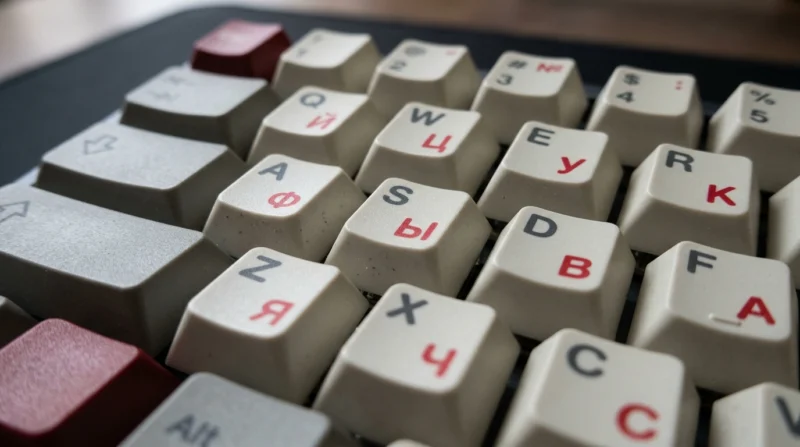
Understanding Russian Keyboard Layouts and Typography
Typing Russian Cyrillic characters requires mapping the 33 letters of the Russian alphabet to physical or virtual keys. Operating systems provide native support for this through two primary input arrangements: the standard acoustic-agnostic layout and the phonetic layout.
The Standard ЙЦУКЕН Arrangement
The native layout used throughout Russia is named ЙЦУКЕН (YTSUKEN) based on the first six keys on the top-left alphabetic row. This layout places high-frequency Russian letters under the strongest fingers, mirroring the ergonomic design philosophy of QWERTY. However, because physical US and UK keyboards do not print these characters by default, touch typists must either memorize the key placements or apply transparent Cyrillic keyboard stickers to their hardware keys.
Phonetic and Mnemonic Keyboards

For individuals accustomed to standard English QWERTY keyboards who do not want to memorize a new spatial arrangement, phonetic (or mnemonic) layouts offer an alternative. These layouts match Russian sounds to their closest Latin equivalents. For example, pressing A outputs а, pressing D outputs д, and pressing M outputs м. Operating systems often include built-in phonetic layouts, and web utilities use similar mappings for browser-based text entry.
| Letter | Standard Layout Key | Phonetic Mapping | UNICODE HEX | Word ALT+X Code |
|---|---|---|---|---|
| а | ф | a | U+0430 | 0430 + ALT+X |
| б | и | b | U+0431 | 0431 + ALT+X |
| в | м | v | U+0432 | 0432 + ALT+X |
| г | у | g | U+0433 | 0433 + ALT+X |
| д | в | d | U+0434 | 0434 + ALT+X |
| е | у | e | U+0435 | 0435 + ALT+X |
| ё | |
U+0451 | 0451 + ALT+X | |
| ж | ж | ‘ | U+0436 | 0436 + ALT+X |
| з | п | z | U+0437 | 0437 + ALT+X |
| и | б | i | U+0438 | 0438 + ALT+X |
| й | щ | j | U+0439 | 0439 + ALT+X |
| к | р | k | U+043A | 043A + ALT+X |
| л | д | l | U+043B | 043B + ALT+X |
| м | ь | m | U+043C | 043C + ALT+X |
| н | т | n | U+043D | 043D + ALT+X |
| о | щ | o | U+043E | 043E + ALT+X |
| п | з | p | U+043F | 043F + ALT+X |
| р | к | r | U+0440 | 0440 + ALT+X |
| с | ы | s | U+0441 | 0441 + ALT+X |
| т | е | t | U+0442 | 0442 + ALT+X |
| у | г | u | U+0443 | 0443 + ALT+X |
| ф | а | f | U+0444 | 0444 + ALT+X |
| х | [ | x | U+0445 | 0445 + ALT+X |
| ц | щ | c | U+0446 | 0446 + ALT+X |
| ч | х | h | U+0447 | 0447 + ALT+X |
| ш | и | w | U+0448 | 0448 + ALT+X |
| щ | щ | ] | U+0449 | 0449 + ALT+X |
| ъ | ъ | = | U+044A | 044A + ALT+X |
| ы | ы | y | U+044B | 044B + ALT+X |
| ь | ь | ; | U+044C | 044C + ALT+X |
| э | э | U+044D | 044D + ALT+X | |
| ю | ю | [ | U+044E | 044E + ALT+X |
| я | я | q | U+044F | 044F + ALT+X |
How to Configure Russian Input on Windows
Windows includes robust multilingual support, allowing you to add and switch between keyboard layouts without installing third-party software.
Adding the Russian Language Pack
- Open Windows Settings by pressing WIN + I.
- Navigate to Time & Language and select Language & Region.
- Click the Add a language button.
- Type Russian into the search bar, select it from the results, and click Next.
- Uncheck optional feature boxes if you only need the keyboard layout, then click Install.
Switching Between Input Languages
Once installed, switch your active keyboard language instantly using WIN + SPACE or ALT + SHIFT. A small language indicator appears in the Windows system tray near the clock, displaying ENG or РУС.
How to Set Up Russian Keyboards on macOS
Apple macOS integrates Cyrillic input sources directly into its system preferences, supporting standard, PC-style, and phonetic layouts.
Navigating System Settings for Input Sources
- Open System Settings from the Apple menu or dock.
- Click on Keyboard in the sidebar menu.
- Find the Text Input section and click the Edit button next to Input Sources.
- Click the plus + icon, search for Russian, and choose between standard Russian, Russian – PC, or Russian – Phonetic.
- Click Add to save the configuration.
Quick Keyboard Switching Shortcuts
Toggle between your active language layouts by pressing CONTROL + SPACE or by tapping the dedicated GLOBE key on modern Apple keyboards.

Alternative Methods: UNICODE, Word, and Online Tools
When operating systems lack administrative rights or physical keyboard labels are missing, alternative workflows provide immediate access to Russian characters.
Using Word and ALT+X for Cyrillic
Microsoft Word supports direct UNICODE conversion. Type the four-character hexadecimal code of the desired Cyrillic letter (for instance, 0430 for lowercase а) and immediately press ALT + X. The text string transforms instantly into the correct Russian character.
Copy-Paste and Virtual Keyboards
Web-based virtual keyboards allow users to click on on-screen character grids or type phonetically within browser text boxes, copying the generated text directly into emails, documents, or chat applications without altering operating system configurations.
Frequently Asked Questions
How do I switch to a Russian keyboard on Windows?
You can quickly switch between installed keyboard layouts on Windows by pressing the WIN + SPACE or ALT + SHIFT keys.
What is the standard Russian keyboard layout called?
The standard Russian layout is known as ЙЦУКЕН (YTSUKEN), named after the top-left row of alphabetic keys.
How can I type Russian letters without installing a layout?
You can use web-based virtual Russian keyboards that allow you to type phonetically using a standard Latin keyboard and copy the text.
How do I type Russian characters in Microsoft Word?
You can type the UNICODE HEX code (such as 0430 for а) and immediately press ALT + X to convert it into the corresponding Cyrillic letter.