


| System / Method | Shortcut or Code | Notes |
|---|---|---|
| Windows ALT Code | ALT + 26 | Requires numeric keypad with Num Lock active |
| Mac Shortcut | Text Replacement or CTRL + CMD + Space | Use Character Viewer or auto-expand shortcuts |
| Word Shortcut | 2192 then ALT+X | Instantly converts HEX code to glyph |
| UNICODE | U+2192 | Standard universal code point |
| HTML Entity | → or → | Web safe markup representation |
Quick Copy and Paste Right Arrow Symbol
Instant Character Access
The right arrow symbol (→) is a frequent requirement in technical documentation, flowcharts, navigation menus, and mathematical expressions. Because standard keyboards lack a dedicated physical key for this specific character, users rely on digital shortcuts, operating system code inputs, or direct clipboard copy routines.
Where to Use the Arrow Symbol
This glyph functions reliably across web browsers, text editors, spreadsheet applications, and communication tools. Whenever a UNICODE-compatible text field is active, pasting the character preserves its visual structure without requiring special fonts.
How to Type the Right Arrow on Windows
Using the NUMPAD ALT Code
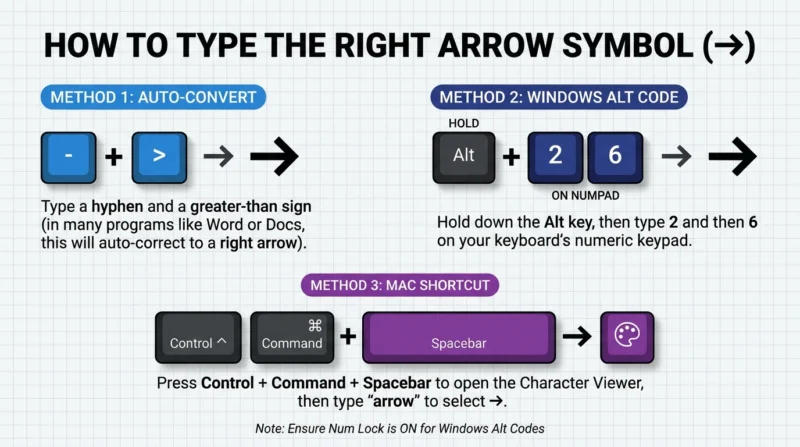
Windows operating systems support numeric keypad shortcuts known as ALT codes. To generate the standard right arrow (→) using hardware input:
- Ensure that your keyboard’s Num Lock is active, indicated by the corresponding LED indicator light.
- Press and hold the ALT key on your keyboard.
- Type the number 2 followed by 6 on the dedicated numeric keypad (not the number row above the alphabet keys).
- Release the ALT key to render the character.
Using Microsoft Word UNICODE Shortcut
Microsoft Word provides an alternative text conversion method for users working without a numeric keypad:
- Open any document in Microsoft Word.
- Type the hexadecimal code 2192 directly into your text.
- Immediately press ALT + X on your keyboard.
- The four digits convert into the right arrow symbol (→).
How to Insert the Right Arrow on Mac
Using the Character Viewer
macOS handles symbol input through the system character viewer palette:
- Press CTRL + CMD + Spacebar to open the Character Viewer.
- Type right arrow into the search bar at the top of the window.
- Double-click the standard right arrow (→) from the search results to insert it into your active document.
Setting Up Text Replacements
For frequent typing, configure an automated text substitution shortcut within macOS System Settings:
- Open System Settings and navigate to Keyboard, then select Text Replacements.
- Click the plus icon to add a new rule.
- In the Replace field, type a trigger sequence such as -->.
- In the With field, paste the right arrow symbol (→).
- Save the configuration. Typing your trigger sequence followed by a space will now automatically output the symbol.
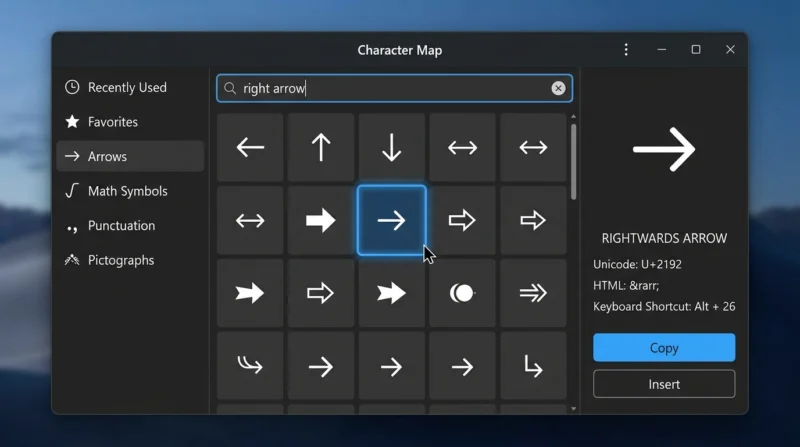
Technical Specifications and UNICODE Details
UNICODE Code Point
The standard right arrow belongs to the Arrows UNICODE block and carries definitive numeric parameters:
- Character: →
- UNICODE Code Point: U+2192
- Decimal Value: 8594
- Hexadecimal Value: 2192
HTML Entities
Web developers embed the right arrow symbol within HTML documents using standard entity structures:
- Decimal Entity: →
- Hexadecimal Entity: →
- Named Entity: →
Frequently Asked Questions
What is the ALT code for the right arrow symbol?
The verified Windows ALT code for the standard right arrow (→) is ALT + 26 using the numeric keypad with Num Lock turned on.
How do I type a right arrow in Microsoft Word?
You can type 2192 and press ALT + X to instantly convert the numbers into the right arrow symbol (→).
How do I make a right arrow shortcut on a Mac?
You can set up a custom text replacement in macOS System Settings so typing shortcuts like --> automatically expands into →.
What is the UNICODE code point for the right arrow?
The standard right arrow symbol has the UNICODE code point U+2192 and the decimal code 8594.