
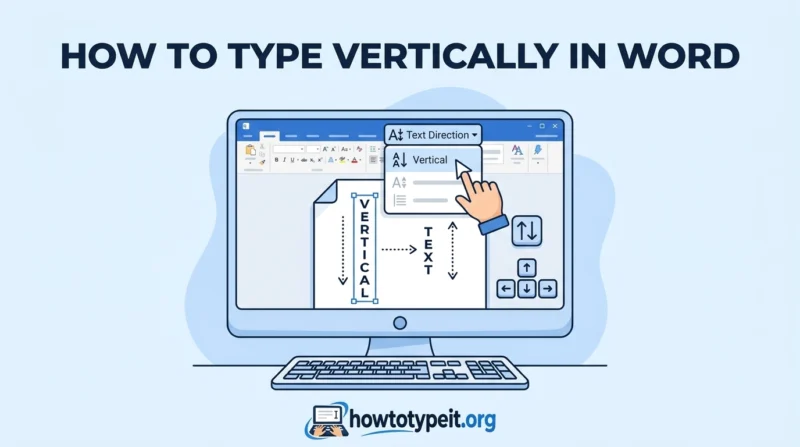
- Text orientation in Microsoft Word requires layout modification tools (text boxes or shapes) rather than single UNICODE glyphs.
- Page vertical alignment shifts entire content blocks between top and bottom margins instead of rotating characters.
- Block selection requires specific command-key combinations like CTRL + SHIFT + F8 or ALT + Mouse Drag.
Understanding Vertical Text Formatting in Word
Why Use Vertical Text Layouts
Vertical text formatting serves distinct design and layout purposes within word processing documents. Users frequently implement vertical orientation for sidebar headings, table headers with restricted horizontal width, spine labels, certificates, and stylized artistic banners. Microsoft Word handles these requirements through container formatting and structural rotation rather than relying on dedicated vertical alphabetic glyphs.
The Difference Between Text Direction and Page Alignment
A common point of confusion during document formatting involves the distinction between text direction and page alignment. Text direction rotates individual glyphs or stacks letters vertically inside a container object. Page alignment controls how paragraphs and content sit between the upper and lower margins of a physical page. Configuring one does not affect the other, making it necessary to select the correct tool depending on design goals.
Method One: Using Text Boxes and Shapes for Vertical Text
Inserting a Text Box
To rotate and type text vertically, you must first create an isolated layout container. Navigate to the Insert tab on the Word ribbon, select Text Box, and choose Draw Text Box or select a pre-formatted shape. Type your desired content inside this boundary before applying directional changes.
Accessing Text Direction Settings
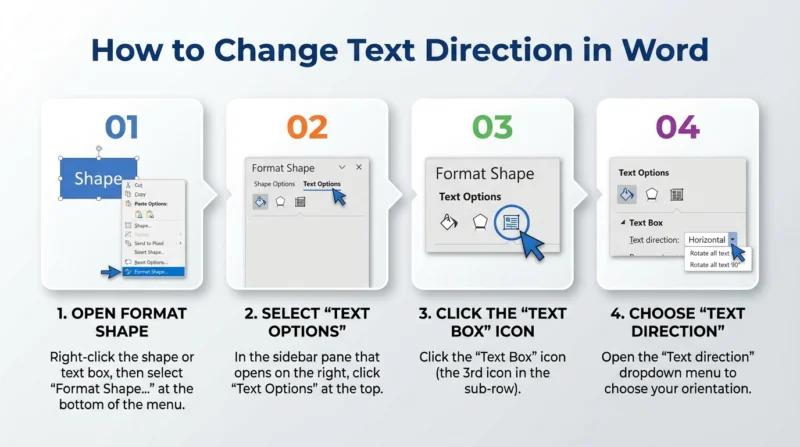
Once your text container contains content, right-click the border of the text box or shape and select Format Shape from the context menu. A task pane opens on the right side of the workspace. Click the Text Options icon, select the Textbox category, and locate the Text direction drop-down menu. Choose between stacked character layouts or 90-degree and 270-degree rotations to achieve the required vertical orientation.
| Setting Name | Visual Behavior | Primary Application |
|---|---|---|
| Horizontal | Standard left-to-right writing flow. | Default document body paragraphs. |
| Stacked | Letters stack directly on top of each other. | Spine titles and narrow banners. |
| Rotate all text 270° | Text reads top-to-bottom vertically. | Left-margin headers and vertical sidebars. |
| Rotate all text 90° | Text reads bottom-to-top vertically. | Right-margin callouts and labels. |
Method Two: Vertical Page Alignment in Word
Navigating to Page Setup
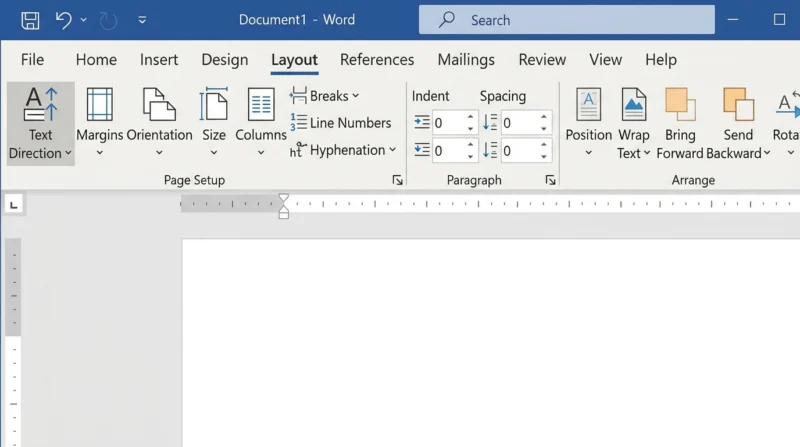
When document content must be centered or distributed evenly between the top and bottom page boundaries rather than rotated, use vertical page alignment. Navigate to the Layout tab on the ribbon and click the small launch arrow in the bottom-right corner of the Page Setup group to open the dialog box. Alternatively, press ALT + P, S, P on Windows.
Adjusting Vertical Alignment Options
Inside the Page Setup window, select the Layout tab. Locate the Page section and find the Vertical alignment drop-down menu. You can choose between Top (default), Center, Justified, and Bottom. This configuration adjusts spacing automatically to fit title pages or short forms perfectly onto a single sheet.
Method Three: Vertical Block Selection and Editing Shortcuts
Using Keyboard Selection Shortcuts
Word includes commands for selecting vertical blocks of text across multiple lines. This proves helpful when editing columnar lists, code blocks, or tabular data without selecting entire horizontal lines. Press CTRL + SHIFT + F8 to enter columnar selection mode. Use the Up Arrow, Down Arrow, Left Arrow, and Right Arrow keys to highlight a precise vertical rectangle of characters. Press ESC to exit selection mode.
Mouse Drag Methods for Vertical Blocks
An alternative method for selecting vertical blocks relies on mouse interaction combined with modifier keys. Press and hold the ALT key on Windows or the Option key on Mac, then click and drag your mouse cursor across the text block. This highlights a vertical column, allowing you to delete, copy, or overwrite specific character columns instantly.
| Action | Windows Shortcut | Mac Shortcut |
|---|---|---|
| Vertical Block Selection (Keyboard) | CTRL + SHIFT + F8 | CMD + SHIFT + F8 |
| Vertical Block Selection (Mouse) | ALT + Mouse Drag | Option + Mouse Drag |
| Open Page Setup Dialog | ALT + P, S, P | Control + Option + Spacebar |
| Cancel Active Selection Mode | ESC | ESC |
Frequently Asked Questions
Is there a special character for vertical typing in Word?
No, vertical typing in Word is handled through layout formatting, text direction settings, and shape containers rather than a unique UNICODE character or symbol.
How do I change text direction inside a text box?
Right-click the border of your text box or shape, choose Format Shape, navigate to Text Options, select Textbox, and choose your preferred Text direction setting.
Can I select a vertical column of text using my keyboard?
Yes, you can select a vertical block of text by pressing CTRL + SHIFT + F8 and using your arrow keys, or by holding the ALT key while dragging your mouse.
What is the difference between vertical text direction and vertical page alignment?
Text direction rotates or stacks individual characters and words within a container, whereas vertical page alignment centers or distributes entire blocks of content between the top and bottom margins.