


| System / Method | Shortcut or Code | Notes |
|---|---|---|
| Windows Word Shortcut | CTRL + = | Primary Microsoft toggle |
| Alternative Word Shortcut | CTRL + SHIFT + - | Secondary legacy shortcut |
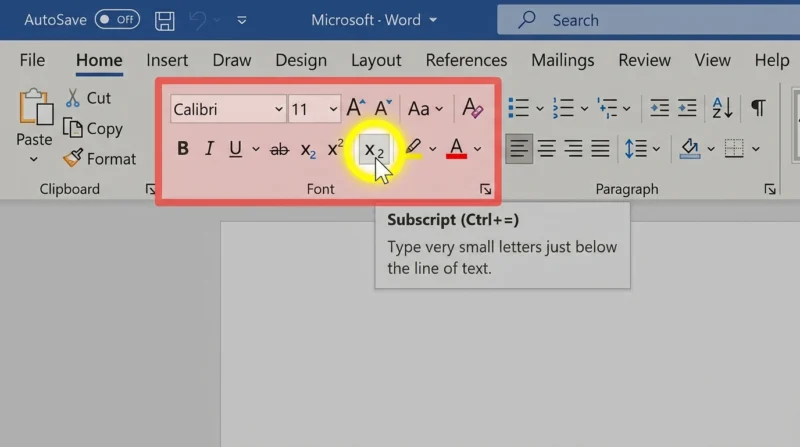
| Word Ribbon Method | Home > x₂ | Visual mouse interface |
| Excel Formula Generation | =CHAR(8322) |
Generates UNICODE subscript |
| UNICODE HEX Standard | U+2082 |
Standard low-line index |
Understanding Subscript Formatting in Microsoft Word
What is a Subscript Formatting State?
Microsoft Word handles subscript as a dynamic character formatting property rather than a permanent distinct glyph. When you apply subscript to text, the application instructs the rendering engine to scale down the font size and SHIFT the baseline downward relative to the standard text line. This ensures that any font family can be rendered in subscript without requiring dedicated font packages for every single mathematical index or chemical coefficient.
Common Use Cases for Subscripts
Subscripts are essential in technical, scientific, and academic documentation. The most frequent application involves chemical formulas, such as writing H₂O or CO₂, where numbers designate the quantity of atoms in a molecular structure. Mathematical and physical documentation also relies heavily on subscripts for indexing variables, such as x₁, x₂, and xn. Furthermore, legal documents and footnotes frequently utilize lower-baseline numbering for reference citations.
How to Use Keyboard Shortcuts for Subscript
The Primary Shortcut: CTRL + =

The most reliable and universally supported keyboard shortcut to toggle subscript formatting in modern Microsoft Word builds is CTRL + =. To use this method efficiently, highlight the specific character or number you wish to adjust, then press CTRL and the equals sign simultaneously. To resume normal text alignment, press the same key combination a second time to deactivate the formatting state. If you press the shortcut before typing, subsequent characters will appear in subscript until you toggle the command off.
Alternative Shortcut: CTRL + SHIFT + Minus
Depending on your specific Microsoft Office release channel, keyboard layout configuration, and operating system build, you may encounter an alternative shortcut listed in official documentation: CTRL + SHIFT + Minus (-). If your primary equals-sign combination is mapped to another macro or conflicts with custom proofing tools, this secondary combination provides an identical formatting toggle. It yields the exact same visual reduction and baseline drop on the active text selection.
Applying Subscript via the Word Ribbon Interface
Navigating the Home Tab
For users who prefer mouse navigation over keyboard shortcuts, Microsoft Word provides a dedicated graphical command button directly within the primary user interface. Navigate to the Home tab located on the top ribbon menu. Look within the Font group, which houses controls for bold, italic, underline, and text size.
Toggling Formatting On and Off
Inside the Font group, locate the Subscript button, which is visually represented by the letter x accompanied by a small number two below its baseline (x₂). Selecting your target text and clicking this button immediately applies the subscript attribute. Clicking the icon a second time removes the property and returns the text to the standard baseline height.
Troubleshooting Common Word Subscript Issues
Resolving Conflicting Shortcut Commands
Because Microsoft documentation references multiple keystrokes across different software versions, users occasionally find that CTRL + = does not trigger the expected action. This usually stems from customized keyboard shortcuts or third-party add-ins hijacking the equals sign. To verify or reassign these commands, open File > Options > Customize Ribbon > Keyboard Shortcuts. Search for the Subscript command in the All Commands category and assign a clean, conflict-free key combination.
Distinguishing Formatting from UNICODE Characters
A common point of confusion involves the difference between formatted standard text and native UNICODE subscript characters. Applying subscript formatting in Word modifies standard characters (H followed by a formatted 2), maintaining searchability and font consistency. In contrast, pasting native UNICODE characters (such as ₂ from an external map) inserts a fixed-glyph symbol that may not scale or inherit font properties correctly across different systems and document templates.
Frequently Asked Questions
What is the standard keyboard shortcut for subscript in Microsoft Word?
The most widely supported keyboard shortcut for subscript in Microsoft Word is CTRL + =, though some versions also recognize CTRL + SHIFT + Minus (-).
How do I turn off subscript formatting after typing?
To turn off subscript, simply press the same keyboard shortcut (CTRL + =) again or click the Subscript icon on the Home ribbon to deactivate it.
Can I use subscript shortcuts in other Microsoft Office applications?
Yes, the CTRL + = shortcut for subscript also works reliably across other Microsoft 365 programs like PowerPoint and OneNote.
Is subscript a single character or a formatting state?
In Microsoft Word, subscript is a character formatting state applied to regular text rather than a single distinct UNICODE character glyph.