

| System / Method | Shortcut or Code | Notes |
|---|---|---|
| Windows ALT Code | ALT + 35 | Use numeric keypad with Num Lock on |
| Mac Shortcut | SHIFT + 3 | Standard US layout |
| Word Shortcut | 0023 then ALT + X | Converts HEX code to # |
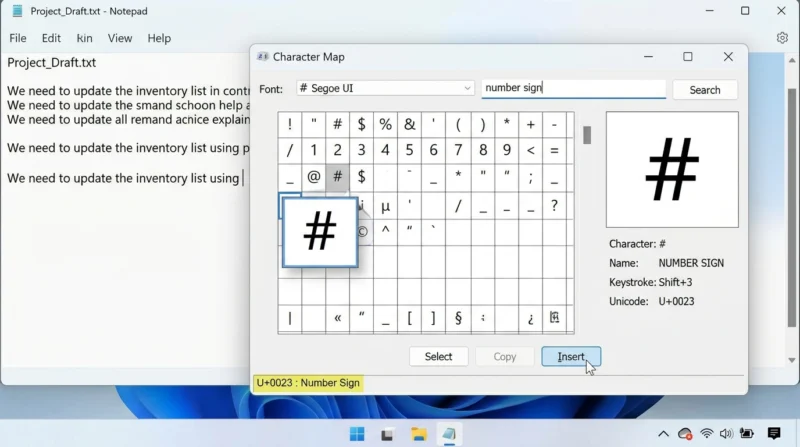
| UNICODE | U+0023 | Standard character map reference |
| HTML Entity | # or # | Web development safe code |
Quick Answer Typing the Number Sign
Standard US and UK Keyboards
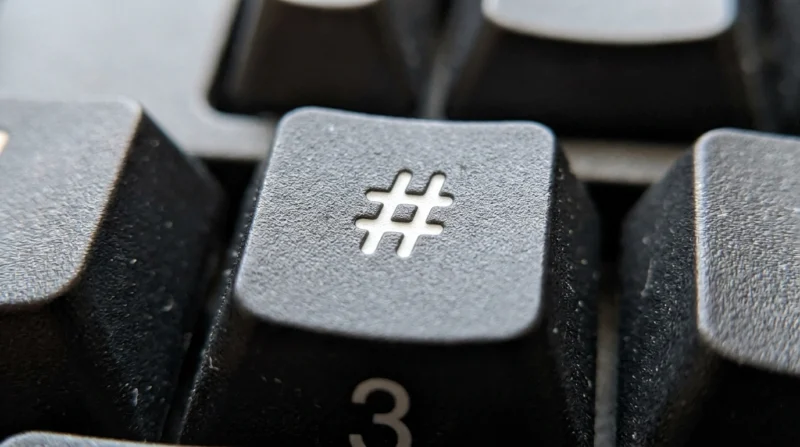
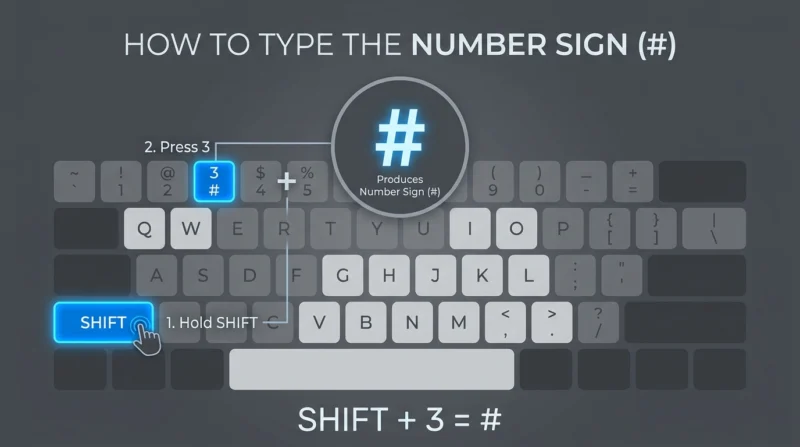
The fastest way to input the number sign (#) on a standard US or UK computer keyboard is to hold down the SHIFT key and press 3 on the top row of alphanumeric keys. Depending on your region, this glyph is formally called the number sign, pound key, or hash symbol.
Mobile and Tablet Keyboards
On virtual keyboards for iOS and Android devices, tap the numeric or symbol toggle key (often labeled 123 or ?#+) to reveal secondary characters. Tap the # key directly. On select touch layouts, holding down the number 3 key opens a popup menu containing alternative glyphs, allowing you to slide your finger to select the number sign.
How to Type the Number Sign on Windows
Using the Standard SHIFT Key Method
For standard word processing, spreadsheet management, and coding environments on a Windows machine configured with a US or UK keyboard layout, press SHIFT + 3. Ensure that your Caps Lock is disabled to prevent typing an unintended uppercase character if your keyboard maps differently.
Using Windows ALT Codes
If your keyboard lacks a functioning number row or you are using an international layout without direct access, use the legacy Windows ASCII ALT code sequence:
- Turn on your keyboard NUM LOCK key so the numeric keypad is active.
- Press and hold down either ALT key.
- Type 3 then 5 on the dedicated numeric keypad.
- Release the ALT key, and the # symbol appears.
Alternatively, inside Microsoft Word or Outlook, type the UNICODE HEX value 0023 and immediately press ALT + X to convert the text into the number sign.
How to Type the Number Sign on Mac
Apple US Keyboard Layouts
On Apple hardware running macOS with a standard US keyboard configuration, the keystroke is identical to Windows: press SHIFT + 3.
International and Alternative Layouts
International Apple configurations, such as British, German, or French AZERTY layouts, place the number sign on separate physical keys or require modifier combinations like OPTION + 3 or ALT + 3. If your physical keycap displays a different symbol, open the macOS Keyboard Viewer utility from the input menu bar item to visually locate the exact mapping.
Technical Specifications and HTML Entities
UNICODE and Character Codes
The number sign is formally standardized within digital character sets under specific numerical identifiers:
- UNICODE Code Point: U+0023
- Decimal Value: 35
- Hexadecimal Value: 0023
Web Development Entities
When authoring HTML documents or web applications where raw punctuation might conflict with parsing rules, use safe entity representations:
- Decimal HTML Entity:
# - Hexadecimal HTML Entity:
# - Named HTML5 Entity:
# - CSS Escape Value:
023 - JavaScript Escape String:
u0023
Frequently Asked Questions
How do I type the number sign (#) on a standard keyboard?
On a standard US or UK keyboard layout, hold down the SHIFT key and press the 3 key.
What is the ALT code for the number sign (#) on Windows?
Turn on Num Lock, hold down the ALT key, type 35 on your numeric keypad, and release ALT.
What is the UNICODE value for the number sign?
The UNICODE code point for the number sign (#) is U+0023.
How do you display the number sign in HTML web documents?
You can use the decimal entity # or the HTML5 named entity # to display the number sign.