


Quick Methods for Fractions in Word
Microsoft Word provides multiple built-in mechanisms to convert standard typed numbers into professional fraction symbols. Choosing the right method depends on whether you need a single precomposed typographic glyph for body text or an adjustable stacked mathematical equation.
Using AutoFormat As You Type
The fastest way to insert common fractions in Word is utilizing the AutoFormat feature. When you type standard numbers separated by a forward slash, Word converts them automatically. For example, typing 1/2 followed by the SPACE or ENTER key instantly transforms the text into the single character ½.
If this conversion does not occur, verify your settings by navigating to File > Options > Proofing > AutoCorrect Options. Select the AutoFormat As You Type tab, and ensure the checkbox for Fractions (1/2) with fraction character (½) is checked.
Copy and Paste Precomposed Fractions
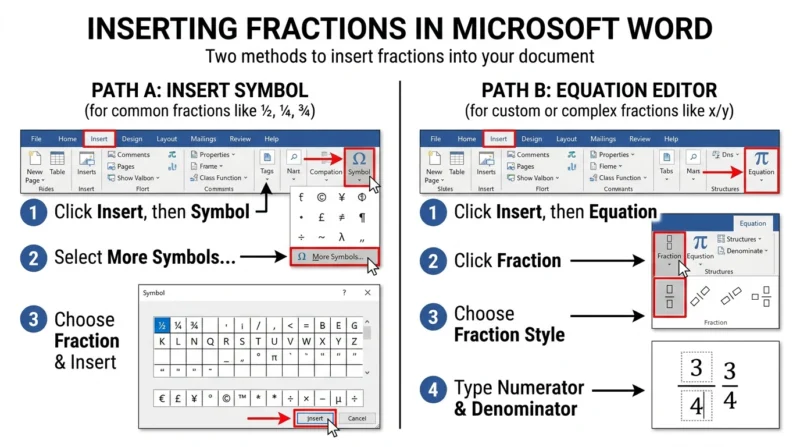
For fractions that lack automatic substitution rules, such as ⅓ or ⅞, copying directly from a character reference table or using Word’s insert menu is standard practice. Access the character library by going to Insert > Symbol > More Symbols. Set the font to (normal text) and locate the Number Forms subset to find the complete array of precomposed vulgar fractions.
Using Windows ALT Codes and UNICODE HEX Shortcuts
Power users frequently rely on direct keyboard shortcuts to insert punctuation and special symbols without taking their hands off the keyboard to click menus.
Standard Numeric Keypad ALT Codes
Windows operating systems support legacy numeric keypad codes for common fraction symbols. Ensure that your NUM LOCK is active, press and hold the ALT key, type the corresponding sequence on your numeric keypad, and release ALT. For example, holding ALT and pressing 0189 produces ½.
Building Professional Math Fractions with the Equation Editor
When drafting technical, scientific, or academic documents, precomposed single-character fractions may look mismatched against standard font sizes. The built-in Equation Editor resolves this by generating crisp, fully customizable stacked fractions.
The ALT + = Linear Shortcut
Initiate the Equation Editor in any Word document by pressing ALT + =. This opens a dedicated equation box. Type your mathematical expression in linear text format, such as 3/7, and press the SPACE key. Word formats the input into a professional vertical fraction with a horizontal division bar.

The ALT + X UNICODE Conversion Trick
Office applications running on Windows feature a powerful HEX conversion tool. Type the UNICODE hexadecimal value for any character directly into your document, such as 2153 for the one-third symbol, and immediately press ALT + X. Word replaces the four-digit HEX code with ⅓ instantly.
Navigating the Ribbon Equation Tools
Alternatively, open the Equation Tools ribbon menu by pressing ALT, then J, then E. Press F to open the Fraction gallery, use your arrow keys to select a stacked, skewed, or blank fraction template, and press ENTER to insert it.
Fraction Symbol Reference Matrix
The following data table outlines the complete set of standard UNICODE fraction characters, their HTML formatting codes, Windows numeric ALT codes, and modern input sequences.
| Glyph | Description | UNICODE HEX | HTML Entity | Windows ALT Code |
|---|---|---|---|---|
| ¼ | One Quarter | U+00BC | ¼ |
ALT + 0188 |
| ½ | One Half | U+00BD | ½ |
ALT + 0189 |
| ¾ | Three Quarters | U+00BE | ¾ |
ALT + 0190 |
| ⅓ | One Third | U+2153 | ⅓ |
2153 + ALT+X |
| ⅔ | Two Thirds | U+2154 | ⅔ |
2154 + ALT+X |
| ⅛ | One Eighth | U+215B | ⅛ |
215B + ALT+X |
| ⅜ | Three Eighths | U+215C | ⅜ |
215C + ALT+X |
| ⅝ | Five Eighths | U+215D | ⅝ |
215D + ALT+X |
| ⅞ | Seven Eighths | U+215E | ⅞ |
215E + ALT+X |
Frequently Asked Questions
How do I type a fraction in Microsoft Word automatically?
Type a standard fraction like 1/2 or 1/4 and press the spacebar; Word’s AutoFormat feature will automatically convert it into a precomposed fraction glyph like ½ or ¼.
What are the ALT codes for common fractions?
On a Windows numeric keypad, hold ALT and type 0188 for ¼, 0189 for ½, or 0190 for ¾, then release the ALT key.
How do I type fractions that don’t have standard ALT codes, like ⅓?
Type the UNICODE hexadecimal code (such as 2153 for ⅓) directly into your Word document, then immediately press ALT + X to convert the code into the fraction symbol.
How do I create stacked mathematical fractions in Word?
Press ALT + = to open the built-in Equation Editor, type your fraction in linear form (like 3/7), and press SPACE to format it as a professional stacked math fraction.