

The Fastest Way to Copy and Paste Special Characters
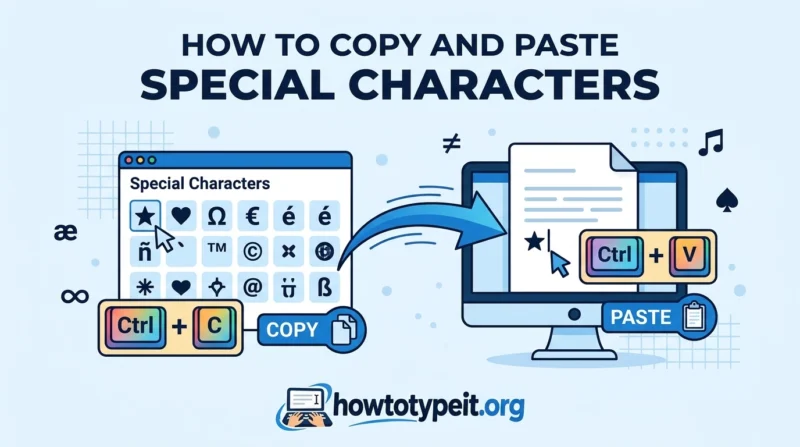
When you need a non-standard symbol immediately, the direct copy-and-paste method remains the most reliable workflow across operating systems and browser applications. Selecting an existing glyph and transferring it to your target application bypasses the need to memorize complex numeric sequences or hardware layouts.
Universal Keyboard Shortcuts
To execute a transfer, highlight the desired glyph with your cursor, copy it using CTRL + C on Windows or CMD + C on macOS, place your insertion point in the target document, and execute CTRL + V or CMD + V. This clipboard transfer preserves vector character data perfectly across word processors, text editors, and web forms.
Avoiding Formatting Glitches

Pasting text from external web sources often transfers unintended font families, background colors, and font sizes into your active workspace. To strip away residual styling, use CTRL + SHIFT + V on Windows or CMD + SHIFT + V on macOS in supported applications. This forces the host application to accept the raw glyph without carrying over foreign CSS styles or paragraph attributes.
Windows Special Character Workflows
Windows provides multiple native pathways for generating characters that lack dedicated physical keys on standard 104-key US layouts.
Using ALT Codes on the Numeric Keypad
Windows systems recognize numeric sequences entered via a dedicated NUMPAD while holding the ALT key. For instance, holding ALT and typing 0176 outputs the degree symbol (°). Similarly, typing 0128 generates the Euro currency sign (€), and 0162 produces the cent sign (¢). Note that these sequences require a physical NUMPAD rather than the top-row number keys.
Navigating the Windows Character Map
If you cannot remember a numeric sequence, press the WIN key, type Character Map, and launch the built-in system utility. This application lists every installed font family and its corresponding UNICODE characters. Select your target symbol, click Select, click Copy, and paste the glyph directly into your project.
macOS Special Character Workflows
Apple computers handle character input through combination layers accessed via modifier keys and visual viewer panels.
Using Option Key Combinations and Dead Keys
macOS relies heavily on the OPT key to generate secondary and tertiary characters. For accented letters, dead keys temporarily suspend output to apply diacritics. Pressing OPT + E followed by E outputs an acute-accented é. Holding OPT alone with standard alphanumeric keys instantly unlocks symbols like section marks, bullets, and currency symbols.
Opening the Character Viewer Palette
To access the complete UNICODE catalog on a Mac, press FN + E (or CTRL + CMD + SPACE). This opens the Character Viewer window, allowing you to browse categories such as currency, math, arrows, and punctuation, then double-click any item to insert it directly into your active text field.

Common Special Characters Quick Copy Bank
Reference the comprehensive matrix below for quick access to frequent symbols, along with their input shortcuts and technical metadata:
| Symbol | Name | Windows ALT Code | Mac Shortcut | UNICODE HEX |
|---|---|---|---|---|
| ™ | Trademark Sign | ALT + 0153 | OPT + 2 | U+2122 |
| ® | Registered Trademark | ALT + 0174 | OPT + R | U+00AE |
| ° | Degree Symbol | ALT + 0176 | OPT + SHIFT + 8 | U+00B0 |
| € | Euro Sign | ALT + 0128 | OPT + SHIFT + 2 | U+20AC |
| ¢ | Cent Sign | ALT + 0162 | OPT + 4 | U+00A2 |
| ¶ | Pilcrow / Paragraph | ALT + 0182 | OPT + 7 | U+00B6 |
| Ø | Capital O-Slash | ALT + 0216 | OPT + O | U+00D8 |
| Ω | Omega Capital | ALT + 234 | OPT + Z | U+03A9 |
| ∞ | Infinity Symbol | ALT + 236 | OPT + 5 | U+221E |
| √ | Square Root | ALT + 251 | OPT + V | U+221A |
Symbols and Punctuation
When drafting formal documents, standard typewriter quotes often fail typographic standards. Copying and pasting curly smart quotes (“ and ”), em dashes (, ), and en dashes (, ) maintains clean professional formatting in publishing workflows.
Mathematical and Currency Signs
Spreadsheet operators and engineers frequently require characters not mapped to standard keys. In Microsoft Excel, formula injection using character codes such as =CHAR(169) generates copyright symbols natively, while LATEX formatting converts strings like infty directly into rendered mathematical notation.
Frequently Asked Questions
How do I copy and paste a special character quickly?
Select the character with your cursor, press CTRL + C on Windows or CMD + C on Mac to copy it, navigate to your target document, and press CTRL + V or CMD + V to paste.
What is the fastest way to type special characters on Windows without copying?
You can use numeric ALT codes by holding down the ALT key and typing a specific numeric sequence on your numeric keypad, such as ALT + 0176 for the degree symbol (°).
How do I access the character map on Windows?
Press the WIN key, type Character Map, and open the built-in system utility to search, select, copy, and paste any UNICODE symbol.
How do I type accented letters and symbols on a Mac?
You can use dead-key combinations with the OPT key, such as pressing OPT + E then E to produce an accented é character.