

- Physical obstruction or sticky mechanical switch beneath the Del keycap.
- Corrupted or outdated human interface device (HID) and keyboard drivers in Windows or macOS.
- Misconfigured accessibility features such as stuck Filter Keys or Sticky Keys.
- Recent system update conflicts overriding custom keyboard map registry entries.
Understanding the Role of the Delete Key
Hardware vs. Printable Characters
The Del (Delete) key is fundamentally a hardware control signal rather than a printable character. In digital typography and character encoding systems, the action of forward deletion maps to the standard DEL control character. In standard specifications, this is cataloged as UNICODE point U+007F, decimal value 127, HTML entity , and caret notation ^?. Because it is a control instruction rather than a standard glyph, it does not possess a visible typeface rendering or a standard ALT code equivalent for normal document insertion.
Standard Functions and Combinations
Operating systems rely on the Del key for distinct functional commands that differ from the standard Backspace key. In text editors, spreadsheet applications, and file managers, the Del key executes a forward delete action, removing the character directly to the right of the cursor. Modifier combinations expand its utility across productivity environments:
- CTRL + Del: Deletes entire words to the right of the cursor in Windows text fields.
- SHIFT + Del: Permanently deletes selected files or items, bypassing the Recycle Bin entirely.
- CTRL + ALT + Del: Triggers the secure operating system interruption menu for task management, user switching, and sign-out controls.
- Fn + Delete: Executes a forward delete action on compact Apple keyboards lacking a dedicated forward-delete keycap.
Immediate Hardware Checks and Physical Maintenance
Clearing Debris and Stuck Keycaps
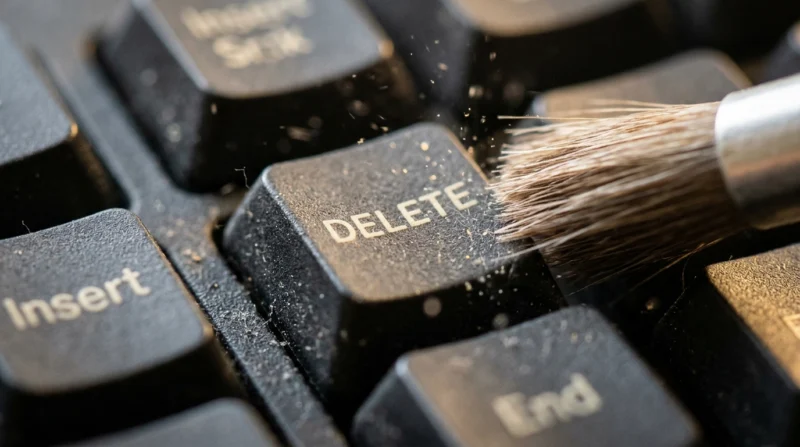
Dust, liquid residue, and particulate debris frequently collect beneath mechanical and membrane keycaps, preventing proper contact closure. To address this, disconnect the keyboard from the host machine immediately. Spray compressed air at a 45-degree angle around the perimeter of the Del keycap to dislodge foreign particles. For mechanical keyboards, use a wire keycap puller to safely remove the switch cap, then clean the stem housing with a cotton swab dampened in high-purity isopropyl alcohol.
Isolation Testing on Another Computer
Determine whether the malfunction stems from physical hardware failure or operating system configuration by plugging the keyboard into an alternate USB port or a completely different computer. If the Del key fails across multiple machines, the internal switch mechanism or PCB trace is damaged, requiring hardware replacement. If the key functions normally on another system, the issue resides entirely within software, drivers, or accessibility settings on the primary machine.
Software and Operating System Troubleshooting
Running the Windows Keyboard Troubleshooter
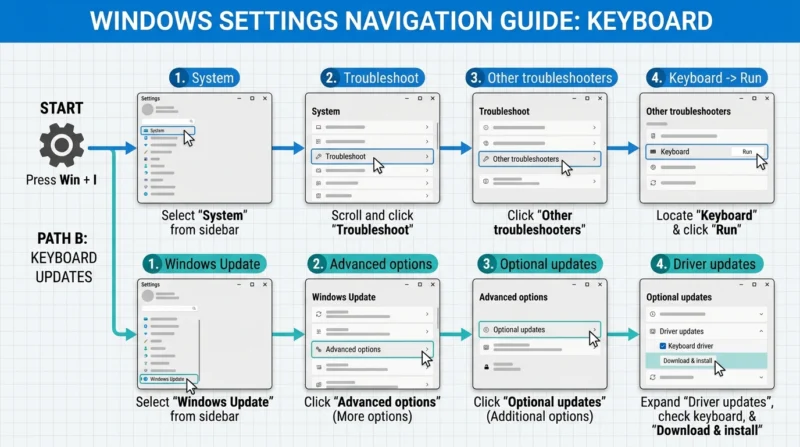
Operating systems include automated diagnostic tools designed to identify and repair input device communication errors. To execute the troubleshooter in Windows, press WIN + I to open Settings, navigate to System or Update & Security, and select Troubleshoot. Choose Additional Troubleshooters, locate the Keyboard entry, and run the automated routine to reset corrupted device registry keys.
Updating or Reinstalling Keyboard Drivers
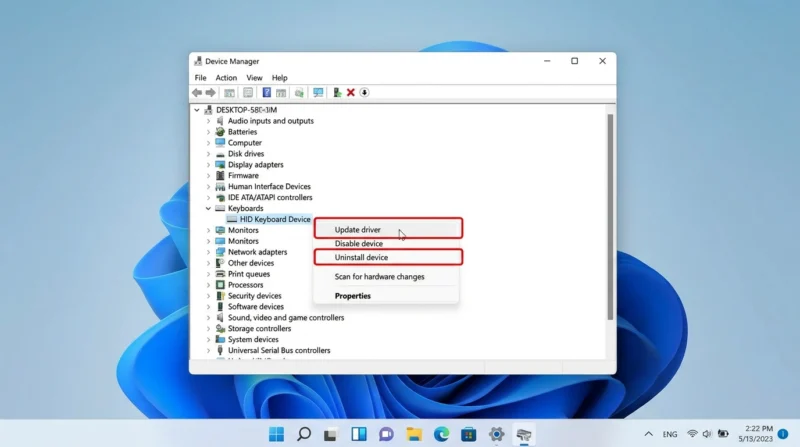
Corrupted or outdated human interface device drivers can disrupt specific scan codes sent by the keyboard controller. Right-click the Start menu and select Device Manager. Expand the Keyboards category, right-click your active keyboard device (typically listed as Standard PS/2 Keyboard or HID Keyboard Device), and select Update Driver. If the issue persists, select Uninstall Device and restart the computer; Windows will automatically reinstall a fresh, default driver upon reboot.
Resolving Accessibility and Update Conflicts
Toggling Filter Keys Off
Accessibility shortcuts can inadvertently alter keyboard response behavior, ignoring repeated keystrokes or short key depressions. To verify these settings, press WIN + I to open Settings, go to Accessibility, and select Keyboard. Ensure that Filter Keys, Sticky Keys, and Toggle Keys are switched to the Off position. This prevents the operating system from filtering out rapid input signals generated by the Del key.
Rolling Back Problematic Windows Updates
Occasionally, cumulative system updates introduce compatibility bugs that interfere with third-party keyboard firmware or specialized layout maps. If the Del key stopped functioning immediately following a recent system patch, open Settings, navigate to Windows Update, review Update History, and select Uninstall Updates. Remove the most recent update package to restore stable hardware communication.
Frequently Asked Questions
Why is my Delete key acting like a Backspace or inserting a character?
In specialized software environments or misconfigured input layouts, control codes like DEL (U+007F) may be mapped incorrectly or interpreted as backspace actions. Checking your regional keyboard language settings in Windows or macOS will restore standard mapping behavior.
How can I perform a forward delete on a Mac keyboard without a dedicated Delete key?
Apple laptop keyboards and compact wireless boards often omit a dedicated forward-delete keycap. You can execute the exact same function natively by pressing the Fn + Delete key combination.
How do I run the keyboard troubleshooter in Windows?
Right-click the Start button, select Settings, navigate to System or Privacy & Security depending on your build version, and locate the additional hardware troubleshooters to run an automated system scan.
What should I do if my Delete key is physically stuck or unresponsive?
Disconnect the device, clean around the physical keycap switch using compressed air and isopropyl alcohol, and test the keyboard on an alternate workstation to verify whether the underlying hardware component has failed permanently.