
| System / Method | Shortcut or Code | Notes |
|---|---|---|
| Windows ALT Code | ALT + 0151 | Use numeric keypad |
| Mac Shortcut | Option + SHIFT + - | Direct key combination |
| Word Shortcut | CTRL + ALT + - | Use numeric keypad minus |
| UNICODE | U+2014 | Standard HEX code |
| HTML Entity | — or — | Web safe |
Quick Methods for Typing an Em Dash in Word
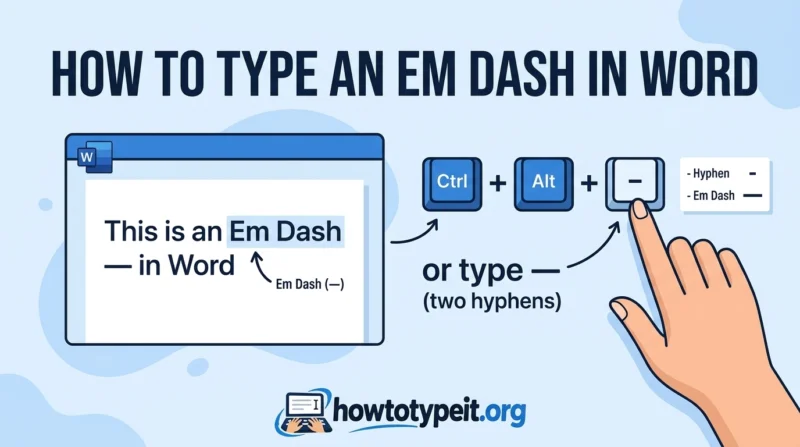
Microsoft Word provides native shortcuts specifically tailored for punctuation marks like the em dash (, ), which measures the width of a capital letter M. Mastering these techniques removes the need to open external character maps or copy symbols from web browsers.
Using the Dedicated NUMPAD Shortcut
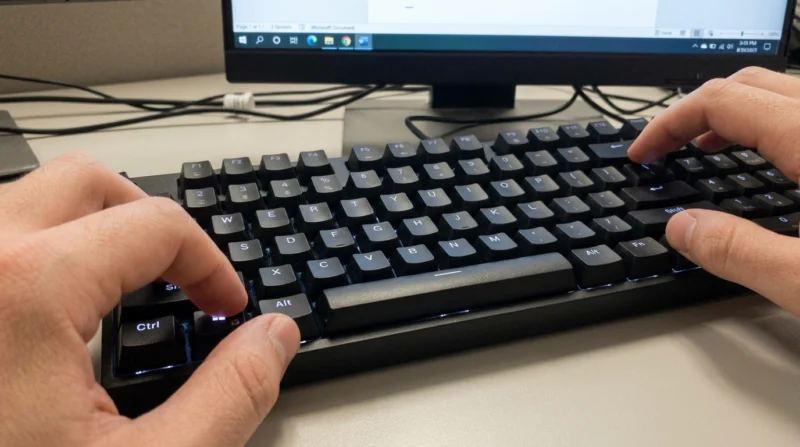
The standard keyboard shortcut inside Microsoft Word for Windows is CTRL + ALT + -. Note that the minus key must originate from the dedicated numeric keypad on the right side of an extended keyboard, rather than the top row of standard alphanumeric keys.
- Ensure your NUMPAD lock is active.
- Press and hold CTRL and ALT simultaneously.
- Tap the minus key (-) on the numeric keypad.
- Release all keys to render the character.
Letting Word Auto-Convert Double Hyphens
Word features an automated formatting rule that replaces consecutive hyphens on the fly. This method requires zero special key combinations.
- Type a word or phrase.
- Type two consecutive hyphens (--) without placing any spaces before, between, or after them.
- Type the next word or insert a space.
- Word instantly transforms the double hyphen into a single em dash.
Alternative Shortcuts and ALT Codes for Windows and Mac
When working outside standard document contexts or if specialized keyboard layouts disable default Word shortcuts, alternative character insertion methods apply.
Windows ALT Code Method
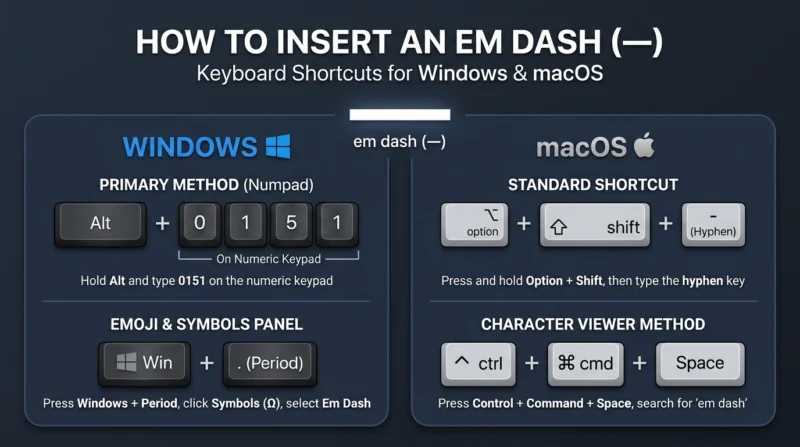
The universal Windows ALT code for an em dash functions across nearly all text-input fields, including Word, Notepad, and web browser forms.
- Verify that the numeric keypad is active (Num Lock enabled).
- Press and hold the ALT key.
- Type 0, 1, 5, 1 sequentially on the numeric keypad.
- Release the ALT key to output , .
Mac OS Keyboard Shortcut
Apple macOS manages punctuation glyphs through modifier key combinations rather than numeric codes.
- Press and hold Option and SHIFT simultaneously.
- Press the standard hyphen/minus key (-) located on the main keyboard deck.
- Release the keys to display the em dash.

Troubleshooting Word’s Dash Formatting
If automated shortcuts fail or produce unexpected output, checking application settings resolves the conflict.
Enabling AutoCorrect for Dashes
If double hyphens fail to convert into em dashes, the AutoCorrect feature may be turned off.
- Open Word and navigate to File > Options.
- Select Proofing from the sidebar menu.
- Click the AutoCorrect Options... button.
- Navigate to the AutoFormat As You Type tab.
- Check the box labeled Hyphenated (--) with em dash (, ).
- Click OK to save changes.
Checking Custom Keyboard Shortcuts
If CTRL + ALT + - triggers unexpected behavior or fails outright, system utilities or third-party software may have reassigned the shortcut.
- Go to File > Options > Customize Ribbon.
- Click Customize... next to Keyboard shortcuts at the bottom of the window.
- Select Common Symbols or All Commands in the categories list.
- Search for InsertSymbol or locate the UNICODE character 2014 to assign a custom keystroke combination.
Frequently Asked Questions
What is the fastest keyboard shortcut for an em dash in Word on Windows?
The official Microsoft Word shortcut for an em dash is CTRL + ALT + - using the numeric keypad minus sign.
How do I make Word automatically change two hyphens into an em dash?
Type two consecutive hyphens between words without spaces, and Word’s AutoFormat feature will automatically convert them into an em dash once you type the next character or space.
What is the ALT code for an em dash?
Hold down the ALT key and type 0151 on your numeric keypad, then release the ALT key to output the em dash.
How do I type an em dash in Word on a Mac?
Press the Option + SHIFT + - keys simultaneously to generate an em dash on macOS.