

| System / Method | Shortcut or Code | Notes |
|---|---|---|
| Windows ALT Code | ALT + 0167 | Use numeric keypad for section sign (§) |
| Windows Sharp S | ALT + 0223 | Use numeric keypad for German Eszett (ß) |
| Mac Shortcut | Option + 6 | Standard layout for section sign (§) |
| Mac Sharp S | Option + s | Direct key combination for (ß) |
| Word Shortcut | 00A7 then ALT + X | Converts HEX code to (§) |
| UNICODE | U+00A7 / U+00DF | Standard hexadecimal code points |
| HTML Entity | § / ß | Web safe character references |
Understanding the Two Types of Double S Symbols
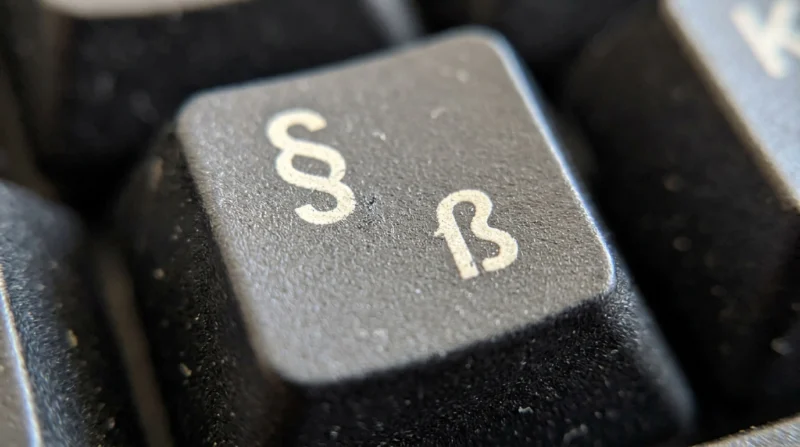
When users search for a double S symbol, they usually look for one of two distinct characters. The first is the section sign (§), often called the silcrow or double S due to its visual resemblance to an S stacked over another S. This mark appears frequently in legal codes, academic textbooks, and contracts to denote individual sections. The second is the German sharp S or Eszett (ß), which functions as a phonetic lowercase letter representing a double s sound in German orthography.
The Section Sign (§ or Silcrow)
The section sign traces its historical lineage back to medieval scribal abbreviations. It combines two lowercase s characters used in old Latin manuscripts for the word signum or section indicators. Modern office workers, legal professionals, and copyeditors encounter this mark regularly when citing legislation or organizing hierarchical document outlines.
The German Eszett (ß)
The Eszett (ß) combines a historic long s (ſ) and a rounded z (ʒ) or s in blackletter typefaces. It exists as both a lowercase glyph (ß) and an uppercase counterpart (ẞ). Standard German orthography uses this letter after long vowels and diphthongs, though the fallback text representation in restricted character sets is a standard double s.
How to Type the Section Sign (§) on Windows and Mac
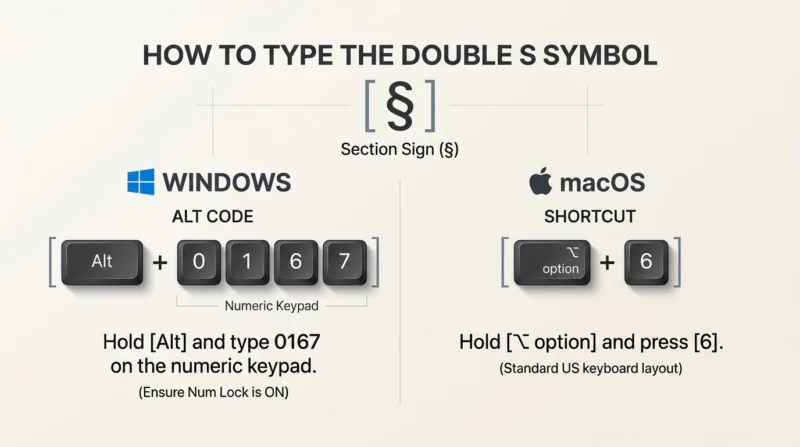
Generating the section sign (§) depends heavily on your operating system and keyboard layout. Desktop keyboards equipped with a dedicated numeric keypad can utilize standard ASCII numeric codes, while laptops require alternative input methods.
Windows ALT Codes for §
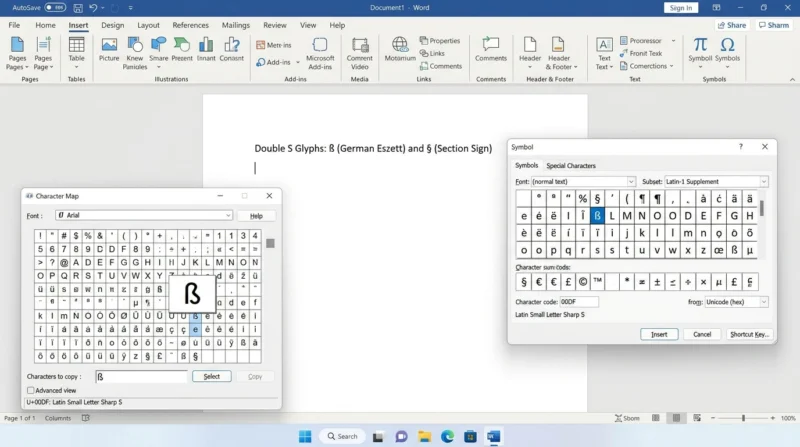
To produce the section sign on Windows using a full-sized keyboard, turn on NUM LOCK, press and hold the ALT key, and type 0167 on the numeric keypad. Releasing the ALT key outputs the character. If your keyboard lacks a numeric keypad, use the built-in Windows Character Map utility, or paste the symbol from a clipboard reference.
Mac Keyboard Shortcuts for §
Apple keyboards make generating the section mark straightforward. On standard US and international layouts, pressing OPTION + 6 outputs §. If your layout differs, access the macOS Character Viewer by pressing CONTROL + COMMAND + SPACEBAR, then search for section sign.
How to Type the German Sharp S (ß) Character
Typing the German Eszett requires system-specific shortcuts or specialized keyboard configurations, especially when working outside of German regional settings.
Typing ß on Windows
On Windows machines, type the lowercase sharp S by holding ALT and typing 0223 on the numeric keypad. Alternatively, in Microsoft Word, type the hexadecimal code 00DF and immediately press ALT + X to convert the code into ß. For the capital variant (ẞ), type 1E9E followed by ALT + X.
Typing ß on Mac and Mobile
On macOS, press and hold the OPTION key while pressing s to generate ß. On mobile operating systems like iOS and Android, long-press the s key on your virtual keyboard to reveal accented and specialized character variants, then slide your finger to select the Eszett.
Quick UNICODE and HTML Reference
Web developers and document designers frequently need precise character encodings to render double S symbols reliably across browsers and publishing platforms.
UNICODE Code Points
The section sign (§) corresponds to UNICODE point U+00A7. The lowercase German sharp S (ß) is located at U+00DF, while its uppercase equivalent (ẞ) sits at U+1E9E.
HTML Entity Codes
For web publishing, use the named entity § to render §. For the sharp S, use the named entity ß or the decimal reference ß for the lowercase glyph, and ẞ for the uppercase capital sharp S.
Frequently Asked Questions
How do I type the double S section symbol (§) on Windows?
You can type the section symbol (§) on Windows by holding down the ALT key and typing 0167 on your numeric keypad.
What is the Mac shortcut for the section sign (§)?
On many Mac keyboard layouts, you can generate the section sign (§) by pressing OPTION + 6.
How do I type the German double S (ß) on a standard keyboard?
On Windows, you can use the ALT code ALT + 0223, while on Mac, you can typically press OPTION + s to produce the sharp S (ß).
What is the difference between § and ß?
The § symbol is a section sign or silcrow used in legal documents to reference sections, whereas ß is the German sharp S (eszett) acting as a phonetic letter.