

- Modifier state locking or physical key switch mechanical failure.
- Windows accessibility settings interfering with key registration (Sticky Keys or Filter Keys).
- Corrupted, outdated, or misconfigured USB/Bluetooth keyboard drivers.
- Incorrect input language layout active or conflicting shell utilities.

Diagnosing the Issue: Is It Hardware or Software?
When the ALT key stops functioning, isolating whether the root cause is a physical hardware defect or a software glitch is the critical first diagnostic step. Modifier keys handle continuous polling states, meaning a single stuck bit or a piece of particulate matter underneath the key switch can render the key completely unresponsive.
Testing with the On-Screen Keyboard
Launch the built-in Windows diagnostic tool to verify if software registers any input from the key. Open the Start menu, type On-Screen Keyboard, and press Enter. Click the virtual ALT key on screen or press your physical ALT key. If the virtual key highlights when you press the physical key, your operating system detects the hardware signal, pointing toward a software configuration issue. If the virtual key does not react to physical input, the issue is strictly hardware or driver-level.
Checking Physical Obstructions and Debris
Mechanical and membrane keyboards collect dust, pet hair, and sticky residue beneath keycaps over time. Gently pry off the ALT keycap using a secure wire keycap puller if you use a mechanical board. Inspect the stabilizer and the underlying switch contact. Blow out accumulated debris using compressed air held upright. For laptop keyboards, avoid prying keycaps as fragile scissor mechanisms break easily; instead, direct short bursts of compressed air at an angle beneath the key edge.
Isolating via External Keyboards
Plug a known working USB external keyboard into your machine. Test whether the ALT key responds on the secondary device. If the external keyboard functions normally, your primary laptop built-in keyboard has a failing internal switch or a loose internal ribbon cable. If neither keyboard registers ALT input, the fault lies within operating system services, active background applications, or registry settings.
Adjusting Windows Accessibility Settings
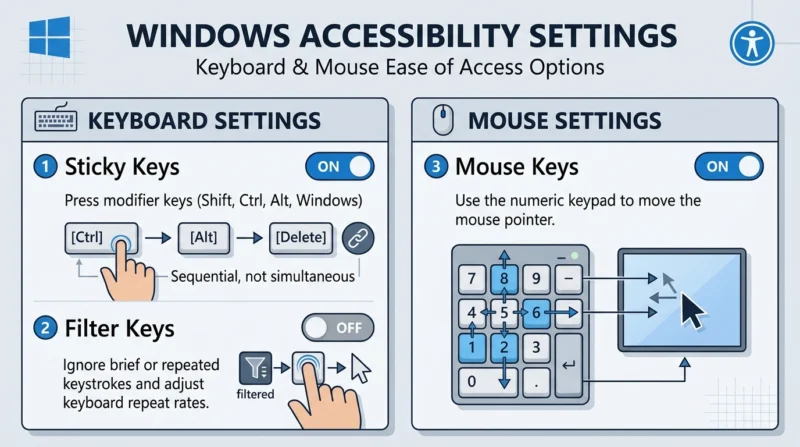
Windows includes accessibility features designed to assist users with motor impairments. However, accidentally triggering these features locks modifier keys, disables shortcuts, or interferes with numeric pad codes.
Disabling Sticky Keys and Filter Keys
Sticky Keys allows modifier keys (ALT, CTRL, SHIFT) to remain active until you press another key. If toggled incorrectly, it locks the ALT state and ruins shortcut registration. Press the SHIFT key five consecutive times to bring up the Sticky Keys prompt, then select Turn off these keyboard shortcuts in settings. Alternatively, navigate to Windows Settings, open Accessibility then Keyboard, and toggle off Sticky Keys, Filter Keys, and Toggle Keys. To prevent accidental activation, click into each feature menu and clear the checkbox allowing shortcut keys to turn them on.
Toggling Mouse Keys for ALT Code Interference
Users attempting to input special characters using numeric keypad ALT codes frequently encounter blocked output if Windows interprets numeric inputs as mouse cursor movements. Fix this conflict by simultaneously pressing Left ALT + Left SHIFT + Num Lock. A prompt will appear asking whether you want to turn on Mouse Keys. Confirm this setting, or use the exact same key combination to clear stuck numeric assignments that block standard text entry.
Refreshing Keyboard Drivers and Language Layouts
Corrupted USB stack drivers or incorrectly configured input language profiles prevent modifier keys from translating keystrokes into recognizable application commands.

Reinstalling Drivers via Device Manager
Right-click the Windows Start button and select Device Manager. Expand the Keyboards category to view connected hardware profiles. Right-click your primary keyboard entry (such as Standard PS/2 Keyboard or HID Keyboard Device) and select Uninstall device. Confirm the uninstallation prompt, then restart your computer immediately. Upon reboot, Windows automatically detects the hardware interface and installs a fresh, uncorrupted keyboard driver stack.
Verifying Active Keyboard Layouts with WIN + Space
If your ALT key behaves strangely or acts like a Right ALT (AltGr) key that modifies character outputs unexpectedly, you may have switched to an international or secondary language layout. Press WIN + Space to cycle through your installed input languages. Ensure your active profile matches your physical hardware layout, such as English (United States) - US keyboard.
Frequently Asked Questions
Why is my ALT key suddenly not working?
An unresponsive ALT key is typically caused by a stuck modifier state, active accessibility features like Sticky Keys, a corrupted keyboard driver, or physical debris under the key switch.
How can I check if my ALT key hardware is broken?
You can open the Windows On-Screen Keyboard to see if clicking the virtual ALT key or pressing your physical key registers input, or plug an external keyboard into your system to isolate the problem.
How do I fix ALT codes not working on my number pad?
ALT codes failing to generate special characters can often be resolved by enabling Mouse Keys via Left ALT + Left SHIFT + Num Lock or ensuring your Num Lock is fully engaged.
How do I reinstall my keyboard driver on Windows?
Right-click the Start menu, open Device Manager, expand the Keyboards category, right-click your keyboard device, select Uninstall device, and restart your computer to force Windows to automatically reinstall a fresh driver.