
- Overlay failure: Verify global Steam Overlay settings and check for conflicting third-party injection software like Discord or RivaTuner.
- Input lag: Confirm USB polling rates or re-calibrate Steam Deck controller layouts via the controller settings menu.
- Unresponsive on-screen keyboard: Reset controller firmware or restart the Steam client service to clear input deadlocks.
Essential PC Steam Keyboard Shortcuts
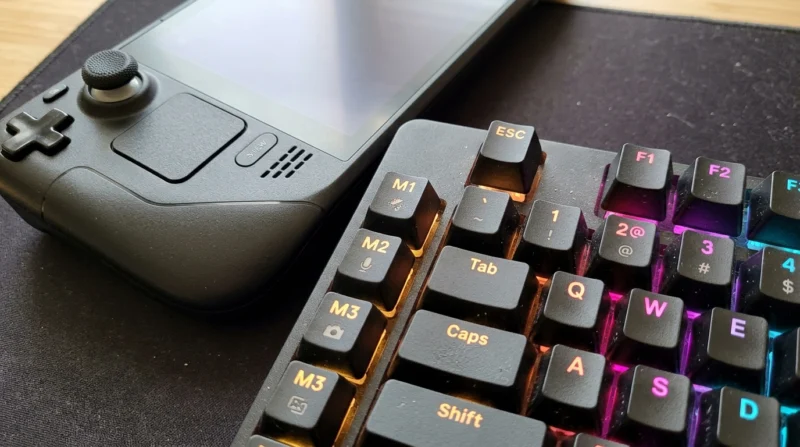
Executing commands efficiently on desktop requires mastery of standard input combinations. PC gaming relies heavily on quick access to background social features, inventory trading, and capture software without minimizing active fullscreen applications.
Invoking the Steam Overlay
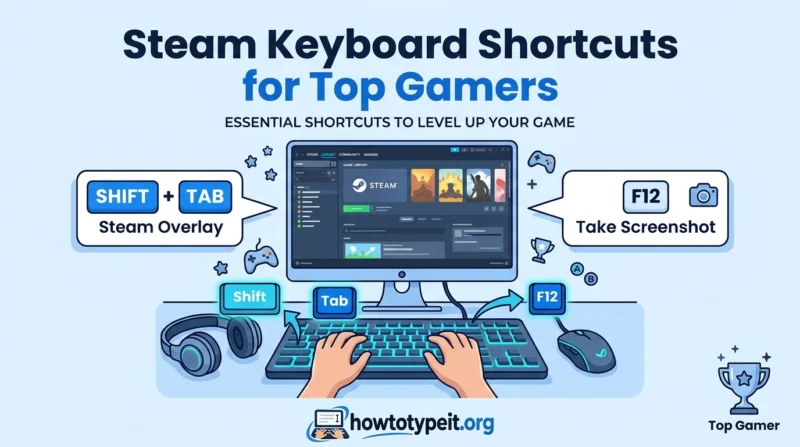
The primary gateway to Steam community features during active gameplay is the overlay interface. Press SHIFT + Tab to launch the overlay. This action summons the friend list, browser, chat windows, and achievement trackers over the active game viewport. If this shortcut fails to register, navigate to the Steam desktop client settings, select the In-Game tab, and verify that the “Enable the Steam Overlay while in-game” toggle is active.
Capturing In-Game Screenshots
Preserving high-resolution moments requires an immediate capture trigger. Press F12 on your physical keyboard to capture the current frame. Steam automatically saves the uncompressed asset to your local screenshot library, prompting a notification thumbnail in the bottom-right corner of your monitor. You can customize the capture key binding inside the In-Game settings menu if F12 conflicts with native game bindings.
Mastering Steam Deck Button Chords and Text Input
Portable gaming hardware requires composite button mapping, known as chords, to replicate full keyboard and mouse functionality. Valve designates the Steam button as a dedicated function modifier.
Launching-the-On-Screen-Keyboard
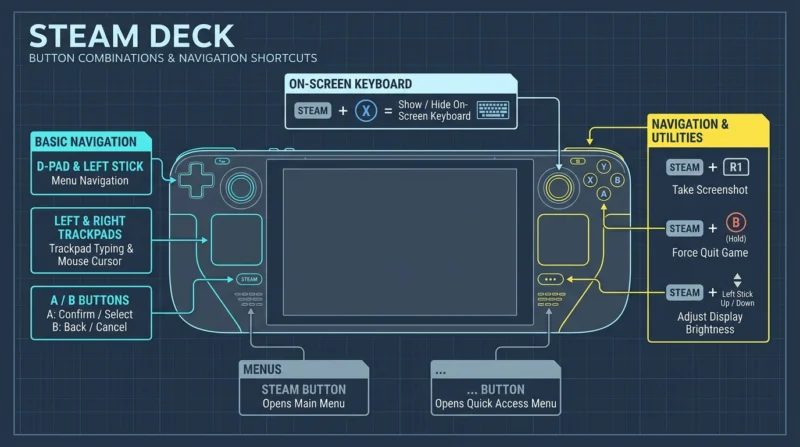
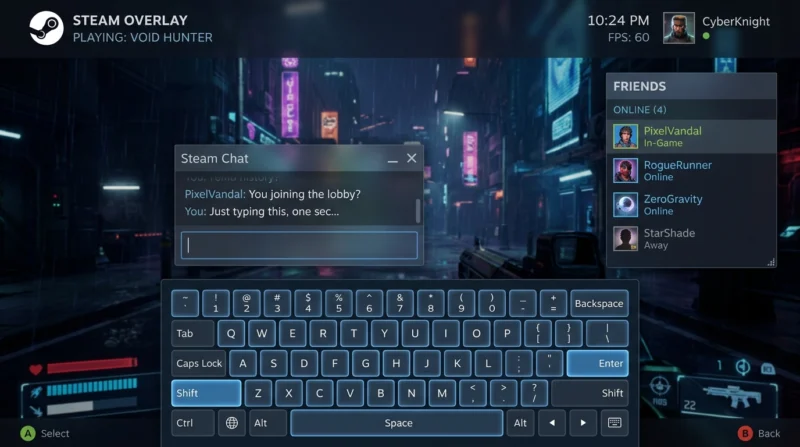
When playing titles that lack native gamepad text fields, manual text entry requires the virtual input layout. Press Steam + X simultaneously to toggle the on-screen keyboard at any time. The interface provides full QWERTY alphanumeric input, trackpad typing, and emoji support.
Navigation and Emulated Mouse Clicks
Navigating menus without a physical mouse or cursor requires specific directional chords:
- Steam + L2: Emulates a right mouse click.
- Steam + R2: Emulates a left mouse click.
- Steam + D-pad Right: Acts as the Enter key.
- Steam + D-pad Down: Acts as the Tab key.
- Steam + D-pad Left: Acts as the ESC key.
Advanced System Commands and Quick Actions
Power users require deep system control for troubleshooting, accessibility enhancement, and emergency application recovery.
Magnifier and Display Controls
Small text fields in legacy strategy games or retro ports can cause eye strain. Press Steam + L1 to toggle the built-in screen magnifier, allowing you to inspect high-resolution UI elements closely. Brightness adjustments are handled instantly by holding Steam and pushing the left joystick up or down.
Forcing Game Shutdowns Safely
When a game freezes during a heavy compute loop or network timeout, standard exit routines fail. Hold Steam + B for several seconds to force an immediate application shutdown, terminating the hung process and returning you to the Steam library interface without requiring a hard reboot of the device.
Frequently Asked Questions
How do you open the Steam Overlay on a PC keyboard?
Press SHIFT + Tab simultaneously while in-game to bring up the Steam Overlay.
What is the shortcut to launch the on-screen keyboard on a Steam Deck?
Press Steam + X together to toggle the on-screen keyboard on your Steam Deck.
How do you take a screenshot using Steam on a PC?
Press the F12 key on your physical keyboard to capture and save an in-game screenshot.
How do you simulate a right-click using Steam Deck buttons?
Hold the Steam button and press L2 to simulate a right-click action.