


| System / Method | Shortcut or Code | Notes |
|---|---|---|
| Windows ALT Code | ALT + 0162 | Use numeric keypad |
| Mac Shortcut | OPTION + 4 | Direct key combination |
| Word Shortcut | 00A2 then ALT+X | UNICODE HEX conversion |
| UNICODE | U+00A2 | Standard HEX code |
| HTML Entity | ¢ or ¢ | Web safe |
Quick Copy and Paste Cent Symbol
Instant Copy Utility
If you need the cent symbol (¢) immediately for a document, spreadsheet, or message, the fastest method is copying it directly from this utility box. The character has a UNICODE code point of U+00A2 and decimal value 162. It functions cleanly across plain text editors, email clients, and content management systems without formatting interference.
How to Type the Cent Symbol on Windows
Using the Numeric Keypad

Windows operating systems support direct character input through ASCII and ANSI ALT codes. To generate the cent sign on a Windows PC:
- Open any text field, document, or input box.
- Press and hold down the ALT key.
- Type 0, 1, 6, and 2 sequentially on your physical NUMPAD numeric keypad.
- Release the ALT key to render the ¢ character.
Note that laptop keyboards without a dedicated hardware numeric keypad require enabling the NumLock function or using the virtual On-Screen Keyboard utility to execute numeric keypad sequences.
Hexadecimal UNICODE Input
Advanced Windows text environments and specific applications support hexadecimal code entry. You can input the HEX value A2 or 00A2 depending on the text editor framework to produce the same typographical output.
How to Type the Cent Symbol on Mac
Using Option Shortcuts
Apple macOS provides native keyboard shortcuts for currency markers on standard US layouts:
- Place your text cursor in any active text input area.
- Press and hold the OPTION key.
- Tap the 4 key.
- Release both keys to output the ¢ character instantly.
Character Viewer
If your keyboard layout lacks direct mapping or you use an international layout, access the macOS Character Viewer by pressing CONTROL + CMD + SPACE. Type “cent” into the search field to select and insert the glyph.
Inserting the Cent Sign in Microsoft Word and Google Docs
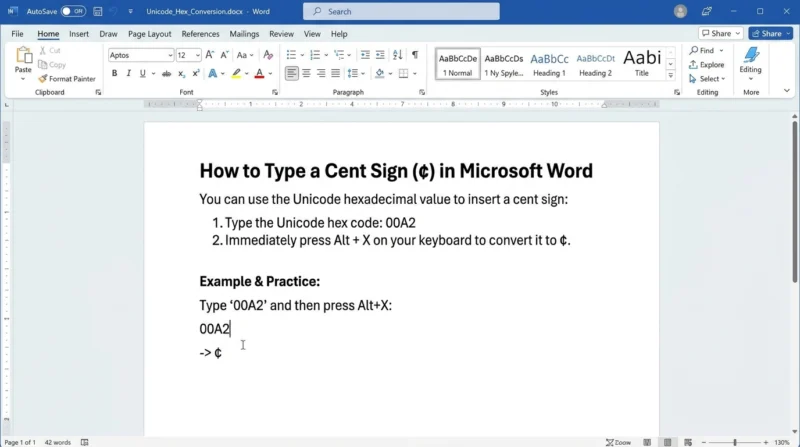
Microsoft Word ALT + X Method
Microsoft Word supports rapid UNICODE-to-symbol conversion for document editing:
- Type the hexadecimal UNICODE sequence 00A2 directly into your Word document.
- Immediately press ALT + X.
- The raw code converts instantly into the formatted ¢ glyph.
Reversing the shortcut (ALT + X while your cursor is immediately after the symbol) reveals the underlying UNICODE value.
Google Docs Special Characters
Google Docs lacks a native direct keyboard shortcut for the cent sign. Use the built-in insertion tool:
- Navigate to the top menu bar and click Insert.
- Select Special characters to open the search modal.
- Type “cent” in the search bar or draw the character in the scratchpad area.
- Click the ¢ symbol to insert it into your document at the cursor location.
HTML Entities for Web Developers
Named and Decimal Entities
Web developers inserting currency markers into HTML source files can use standardized entity codes to ensure proper browser rendering across different operating systems and character encodings:
- Named Entity:
¢renders as ¢ - Decimal Entity:
¢renders as ¢ - Hexadecimal Entity:
¢renders as ¢
Frequently Asked Questions
How do I type the cent symbol on Windows?
Hold down the ALT key and type 0162 on your numeric keypad, then release the ALT key to display ¢.
What is the Mac shortcut for the cent symbol?
Press OPTION + 4 on a standard US macOS layout to instantly insert the cent sign.
How do I type the cent symbol in Microsoft Word?
Type 00A2 and immediately press ALT + X to convert the text into a cent symbol.
What is the HTML entity code for the cent sign?
You can use the named entity ¢ or the decimal code ¢ in your web documents.