
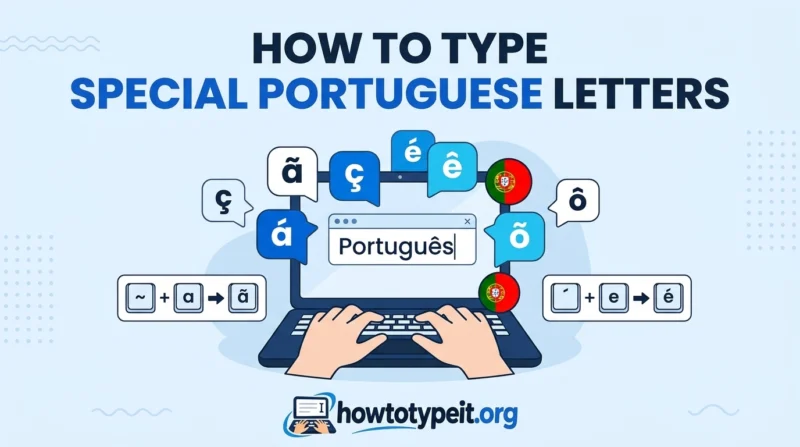

Essential Portuguese Characters Overview
Portuguese orthography relies on specific diacritical marks and modified consonants to convey precise phonetic pronunciation and grammatical distinctions. Mastering input methods for these characters prevents spelling errors in names, formal correspondence, and localized digital publishing.
The Core Diacritics and Cedilla
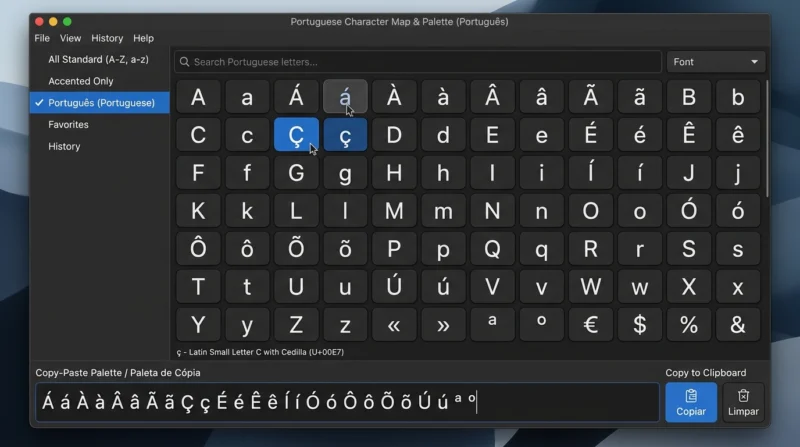
The standard Portuguese character set includes the acute accent (´) for open vowel sounds, the grave accent (`) primarily used for crasis contractions like à, the circumflex accent (^) for closed vowel sounds, the tilde (~) for nasalized vowels like ã and õ, and the cedilla (ç) to transform a hard c sound into a soft s sound before back vowels.
Uppercase vs. Lowercase Accents
Applying diacritics to capital letters follows identical logical groupings as lowercase letters, though hardware layout constraints require explicit modifier sequences or numeric codes on standard English physical keyboards. Ensuring correct capitalization of accented letters such as Á, Ã, and Ç maintains professional typographic standards.
Typing Portuguese Letters on Windows

Windows provides multiple strategies for generating Portuguese characters, ranging from numerical code inputs to application-specific formatting shortcuts and permanent keyboard layout remappings.
Using Windows ALT Codes with the Numeric Keypad
Direct insertion is possible by holding the ALT key down while typing a designated numeric sequence on the dedicated right-hand NUMPAD. For lowercase characters, use ALT + 0225 for á, ALT + 0231 for ç, and ALT + 0227 for ã. For uppercase characters, use ALT + 0192 for À and ALT + 0199 for Ç. Laptops lacking a physical NUMPAD require activating the embedded numeric layer via FN + NUM LOCK.
Microsoft Word Direct Accent Shortcuts
Microsoft Office includes built-in macro shortcuts independent of operating system keyboard layouts. Pressing CTRL + ' followed by a vowel produces an acute accent. Pressing CTRL + SHIFT + ^ followed by a vowel yields a circumflex accent. Pressing CTRL + SHIFT + ~ followed by a or o generates nasalized tilde variants.
Using the International Keyboard Layout
Configuring the US-International keyboard layout in Windows settings transforms standard punctuation keys into active dead keys. Pressing ' followed by a instantly outputs á. Pressing ~ followed by n generates ñ, while ~ followed by a yields ã. Pressing , followed by c produces the cedilla ç.
Typing Portuguese Letters on Mac
Apple macOS streamlines diacritic input through native modifier chords or universal selection menus, eliminating the need for numeric code memorization.
Using Option Key Combinations
MacOS relies on the OPT key combined with specific mnemonic modifier keys. Pressing OPT + N, releasing, and typing A produces ã. Pressing OPT + `, releasing, and typing A generates à. Pressing OPT + C directly inserts the cedilla ç.
The Press-and-Hold Selection Method
For casual typing without memorizing modifier sequences, hold down any base vowel key such as A, E, or O for roughly one second. A numbered floating menu appears directly above the cursor showing all valid diacritical variants. Pressing the corresponding number key on the keyboard instantly inserts the selected character.
Typing on Smartphones and Tablets
Mobile operating systems across iOS and Android handle specialized character input natively through touch interface gestures.
Lowercase UNICODE and HTML Entities
| Letra | UNICODE | Decimal | HTML Entity | Windows ALT Code |
|---|---|---|---|---|
| á | U+00E1 | 225 | á |
ALT+0225 |
| à | U+00E0 | 224 | à |
ALT+0224 |
| â | U+00E2 | 226 | â |
ALT+0226 |
| ã | U+00E3 | 227 | ã |
ALT+0227 |
| é | U+00E9 | 233 | é |
ALT+0233 |
| ê | U+00EA | 234 | ê |
ALT+0234 |
| í | U+00ED | 237 | í |
ALT+0237 |
| ó | U+00F3 | 243 | ó |
ALT+0243 |
| ô | U+00F4 | 244 | ô |
ALT+0244 |
| õ | U+00F5 | 245 | õ |
ALT+0245 |
| ú | U+00FA | 250 | ú |
ALT+0250 |
| ç | U+00E7 | 231 | ç |
ALT+0231 |
Uppercase UNICODE and HTML Entities
| Letra | UNICODE | Decimal | HTML Entity | Windows ALT Code |
|---|---|---|---|---|
| Á | U+00C1 | 193 | Á |
ALT+0193 |
| À | U+00C0 | 192 | À |
ALT+0192 |
| Â | U+00C2 | 194 | Â |
ALT+0194 |
| Ã | U+00C3 | 195 | Ã |
ALT+0195 |
| É | U+00C9 | 201 | É |
ALT+0201 |
| Ê | U+00CA | 202 | Ê |
ALT+0202 |
| Í | U+00CD | 205 | Í |
ALT+0205 |
| Ó | U+00D3 | 211 | Ó |
ALT+0211 |
| Ô | U+00D4 | 212 | Ô |
ALT+0212 |
| Õ | U+00D5 | 213 | Õ |
ALT+0213 |
| Ú | U+00DA | 218 | Ú |
ALT+0218 |
| Ç | U+00C7 | 199 | Ç |
ALT+0199 |
iOS and Android Hold-to-Select Menus
On virtual software keyboards for both iPhone and Android devices, tap and hold your finger on the base letter key. A contextual popup grid will emerge displaying every accented and modified variant associated with that letter. Slide your finger to the target character and lift to insert.
Complete Reference and HTML Codes
Use the verified reference tables below for programming, web publishing, and document authoring.
Frequently Asked Questions
How do I type the cedilla (ç) on a standard English keyboard?
On Windows, you can type ç using the ALT code ALT + 0231 on your numeric keypad, or use an International keyboard layout where apostrophe followed by c produces ç. On a Mac, simply press OPT + C.
Why do my Windows ALT codes not work when typing Portuguese letters?
Windows ALT codes require you to use the numeric keypad on the right side of your keyboard while holding ALT, rather than the row of numbers across the top of the keyboard.
How do I type accented letters on a Mac without changing keyboard layouts?
You can press and hold down any base letter key like A, E, or O for one second, which opens a small numbered popup menu showing all available accented variants.
What are the easiest shortcuts to use in Microsoft Word for Portuguese accents?
Microsoft Word supports dedicated international shortcuts, such as CTRL + ' followed by a vowel for acute accents, CTRL + SHIFT + ^ for circumflex, and CTRL + SHIFT + ~ for tilde.