

| System / Method | Shortcut or Code | Notes |
|---|---|---|
| Windows ALT Code | ALT + [Code] | Use numeric keypad for accented variants |
| Mac Shortcut | Option + [Key] | Direct dead-key combination or hold key |
| Word Shortcut | [HEX] then ALT+X | Converts UNICODE HEX to character |
| UNICODE | U+0061 | Standard hexadecimal reference |
| HTML Entity | a | Web safe entity code |
Understanding the Letter a ALT Code
Why Plain ‘a’ Doesn’t Need an ALT Code
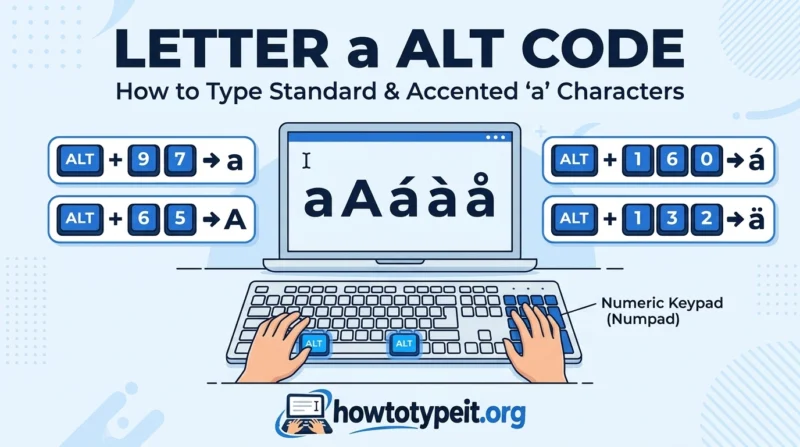
The standard lowercase letter a and uppercase letter A are foundational members of the basic ASCII character set. Because they map directly to standard keyboard keys, you do not require an ALT code or macro sequence to generate them on everyday hardware. You simply press the A key on your layout. ALT codes are strictly designed to generate non-standard characters, extended symbols, or accented variants that lack dedicated keys on standard regional layouts.
Standard Character Metadata
For technical reference, the basic Latin lowercase letter a carries the UNICODE designation U+0061. Its decimal equivalent in computer memory is 97, and its uppercase counterpart A resides at UNICODE U+0041 with a decimal value of 65. Understanding these numeric identifiers ensures proper database entry, programming syntax execution, and cross-platform text rendering.
Windows ALT Codes for Accented ‘a’ Variants
Acute, Grave, and Circumflex Codes
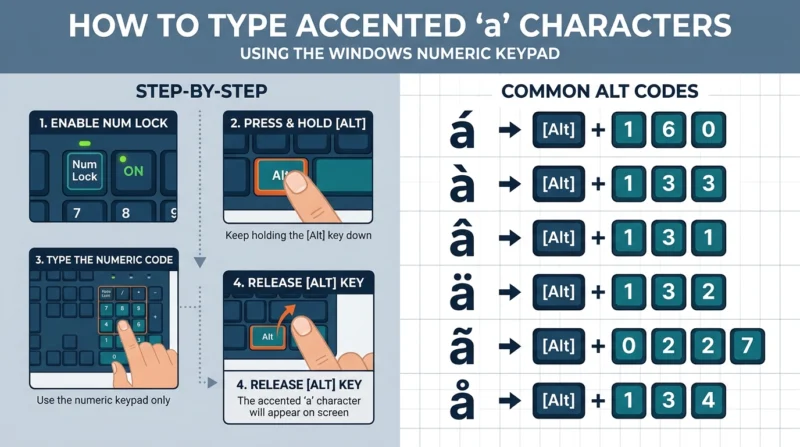
While the plain letter a requires no code, modified variations require specific numeric sequences on a Windows keyboard equipped with a dedicated numeric keypad. To execute these codes successfully, ensure NUM LOCK is active, press and hold the ALT key, type the exact numeric sequence on your NUMPAD, and release ALT.
| Character | ALT Code | Description |
|---|---|---|
| á | ALT + 160 (or 0225) | Small letter a with acute accent |
| Á | ALT + 0193 | Capital letter A with acute accent |
| à | ALT + 133 (or 0224) | Small letter a with grave accent |
| À | ALT + 0192 | Capital letter A with grave accent |
| â | ALT + 131 | Small letter a with circumflex |
| ä | ALT + 132 (or 0228) | Small letter a with diaeresis / umlaut |
Step-by-Step Windows NUMPAD Input
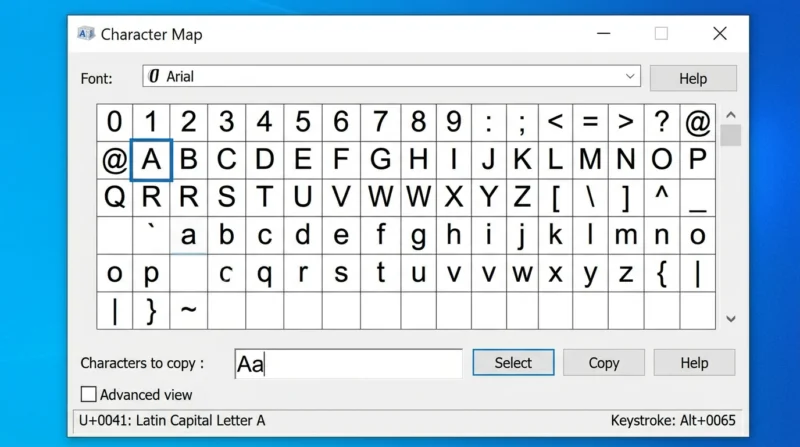
Errors during numeric entry usually stem from using the number row across the top of a keyboard instead of the dedicated numeric keypad. Desktop keyboards feature this pad on the right side. For compact laptop layouts without a physical NUMPAD, users must enable the software-based NumLock layer (often triggered via Fn + keys) or utilize the Windows Character Map utility (WIN + R, type charmap, press Enter) to copy and paste the target glyph.
Typing Accented ‘a’ Characters on Mac
Using Option Key Dead Keys
Apple macOS handles accented characters using dead-key modifiers combined with the OPTION key. A dead key prepares the system to place an accent mark over the next letter typed. To produce specific variants on a Mac:
- á: Press Option + E, release both, then press A.
- à: Press Option + `, release both, then press A.
- â: Press Option + I, release both, then press A.
- ã: Press Option + N, release both, then press A.
- å: Press Option + A directly. For uppercase Å, press SHIFT + Option + A.
The Modern Hold-and-Select Menu
On modern versions of macOS and iOS, you can bypass key combinations entirely. Press and hold the A key down on your physical keyboard or virtual touch screen. A small floating numerical menu will appear above the cursor displaying every accented variant of the letter a. Press the corresponding number key shown beneath your target character, or click it with your mouse to insert it instantly.
HTML Entities and UNICODE Values for ‘a’
Web Development Encodings
Web developers and content authors frequently need raw character references to prevent encoding corruption across browsers. The table below lists standard web references for both plain and accented forms of letter a.
| Character | UNICODE HEX | Decimal Entity | Named HTML Entity |
|---|---|---|---|
| a | U+0061 | a | n/a |
| A | U+0041 | A | n/a |
| á | U+00E1 | á | á |
| Á | U+00C1 | Á | Á |
| à | U+00E0 | à | à |
| À | U+00C0 | À | À |
Microsoft Word HEX Conversions
If you are working inside Microsoft Word or WordPad on Windows, you can convert a UNICODE hexadecimal value directly into its corresponding character without remembering ALT codes. Type the hexadecimal code (such as 0061 for lowercase a or 00E1 for á), then immediately press ALT + X. The text string will instantly transform into the targeted symbol.
Frequently Asked Questions
What is the ALT code for a plain letter a?
A plain lowercase ‘a’ or uppercase ‘A’ has no ALT code because it is a standard ASCII character that you can type directly using your keyboard.
How do I type an accented á using an ALT code on Windows?
Make sure Num Lock is on, hold down the ALT key, type 160 on your numeric keypad, and release ALT to output á.
How do I type accented variants of ‘a’ on a Mac?
You can press the Option key combined with a dead-key modifier (such as Option+e then a for á), or hold down the ‘a’ key to open the accent picker menu.
What is the HTML entity code for letter a?
The HTML decimal entity for lowercase ‘a’ is a, and for uppercase ‘A’ it is A.