
| System / Method | Shortcut or Code | Notes |
|---|---|---|
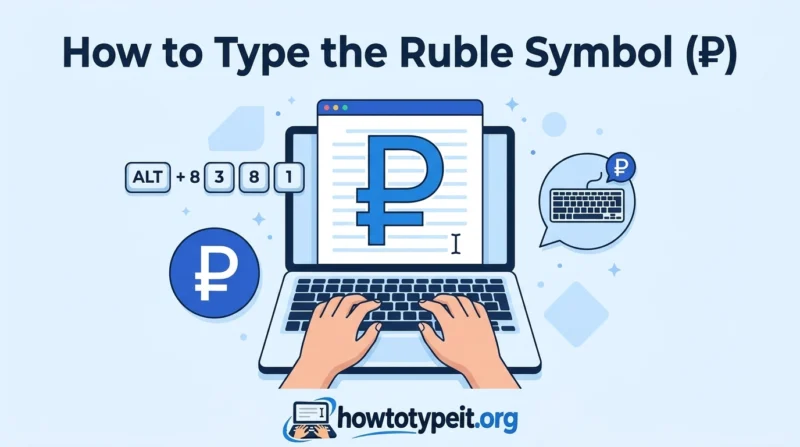
| Windows ALT Code | ALT + 8381 | Use numeric keypad with Num Lock active |
| Mac Shortcut | Option + 8 | Requires Russian keyboard layout enabled |
| Word Shortcut | 20BD then ALT + X | Converts HEX code directly in Microsoft Word |
| UNICODE | U+20BD | Standard hexadecimal notation |
| HTML Entity | ₽ | Standard numeric entity for web safety |
| LATEX Code | ruble or custom macro | Requires textcomp or marvosym packages |
Quick Copy and Paste the Ruble Symbol
The fastest way to output the Russian ruble sign (₽) without remembering specific operating system shortcuts is to copy and paste the character directly. The glyph code point is officially designated under UNICODE U+20BD and corresponds to the decimal reference 8381. Web developers utilize the numeric entity string ₽ to ensure absolute browser compatibility across older rendering engines that lack direct UTF-8 support.
Instant Copy Block
Highlight, copy, and paste the exact character symbol from the block below:
How to Type the Ruble Symbol on Windows

Windows operating systems provide multiple native workflows for generating currency symbols. Depending on whether your physical keyboard features a dedicated numeric keypad, you can choose between numeric ALT codes and hexadecimal conversion shortcuts.
Using the ALT Code Shortcut
Standard Windows environments recognize ANSI and UNICODE numeric key sequences. To output the ruble sign:
- Ensure your keyboard NUM LOCK is active.
- Press and hold either the left or right ALT key.
- Type the exact decimal sequence 8381 on your numeric keypad.
- Release the ALT key to render the ₽ glyph.
Note that laptop keyboards without a dedicated physical numeric keypad require activating an embedded software number pad layer via the FN key.
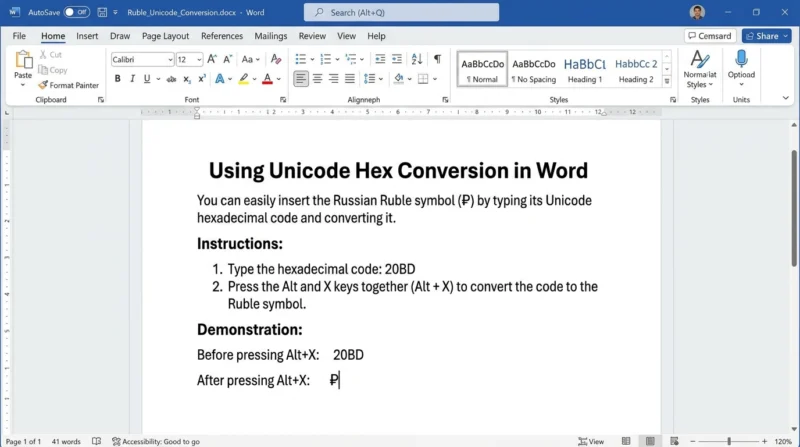
Using Word HEX Conversion
Microsoft Word, Outlook, and OneNote support instant hexadecimal-to-UNICODE conversion:
- Open a document in Microsoft Word.
- Type the hexadecimal code 20BD.
- Immediately press ALT + X.
The raw text characters convert instantly into the rendered ruble sign (₽).
How to Type the Ruble Symbol on Mac
macOS handles special characters through system-wide character pickers and regional layout toggles.
Using the Character Viewer
If you do not have a Russian layout installed on your macOS system, the Character Viewer provides reliable access:
- Press CTRL + CMD + SPACE to open the Character Viewer panel.
- Type ruble into the search bar at the top right.
- Double-click the Russian Ruble Sign result to insert it into your active text field.
Using Russian Layout Options
Users who frequently type documents in Russian can switch their active input source. With the Russian keyboard layout selected, pressing OPTION + 8 outputs the ruble symbol directly.
Inserting the Ruble Symbol in Google Docs and Office
Cloud-based productivity suites and office applications feature dedicated symbol insertion menus.
Google Docs Special Characters
- Open your document in Google Docs.
- Navigate to the top menu bar and click Insert > Special characters.
- In the search window, type ruble or draw the symbol in the scratchpad grid below.
- Click the ₽ character to insert it at your cursor position.
Microsoft Office Insert Menu
- Select the Insert tab on the Microsoft Office ribbon.
- Click Symbol on the far right, then choose More Symbols.
- Set the font dropdown to (normal text) and subset to Currency Symbols.
- Locate and select the ruble sign, then click Insert.
Typing the Ruble Symbol on Mobile Devices
Virtual keyboards on modern mobile operating systems group regional currency variants under primary modifier keys.
iOS Apple Keyboards
- Switch your iOS virtual keyboard to the numeric and symbols view by tapping 123.
- Tap and hold the primary currency symbol key (such as $).
- Slide your finger to select the ₽ sign from the secondary popup menu.
Android Keyboards
- Open the symbols and numeric palette by tapping the ?123 or =< key.
- Tap the secondary symbols modifier (such as ~[) if the currency is not immediately visible.
- Long-press the default currency key to reveal international symbols, then tap ₽.
Spreadsheet Formulas and Accounting Standards
When generating automated financial reports or ledger sheets in Microsoft Excel or Google Sheets, standardizing currency formatting prevents calculation errors.
Excel Formula Insertion
To output the ruble sign dynamically inside a calculated text string, use the spreadsheet character function referencing the decimal code:
=CHAR(8381) & " 1,500.00"Custom Number Formatting
To apply a custom accounting format without altering the raw numeric value of a cell:
- Right-click the target cell or column and select Format Cells.
- Navigate to the Custom category under the Number tab.
- Input the format string: #,##0.00 "₽"
- Click OK to apply the custom currency suffix across your dataset.
Frequently Asked Questions
What is the official UNICODE code point for the Ruble symbol?
The official UNICODE code point for the Russian Ruble sign is U+20BD, which translates to decimal value 8381.
How do I type the Ruble symbol on Windows using an ALT code?
Hold down the ALT key and type 8381 on your numeric keypad, then release the ALT key to render the ₽ sign.
Can I type the Ruble symbol in Microsoft Word using a shortcut?
Yes, type 20BD and immediately press ALT + X on your keyboard to convert the hexadecimal code directly into ₽.
How do I insert the Ruble symbol in Google Docs?
Go to the Insert menu, select Special characters, search for ruble, and click the Russian Ruble sign to insert it into your document.