
| System / Method | Shortcut or Code | Notes |
|---|---|---|
| Windows ALT Code | ALT + 0162 | Use numeric keypad with NumLock active |
| Mac Shortcut | Option + 4 | Direct key combination on macOS |
| Word Shortcut | 00A2 then ALT + X | Converts UNICODE HEX to symbol |
| UNICODE | U+00A2 | Standard hexadecimal specification |
| HTML Entity | ¢ or ¢ | Web safe rendering codes |
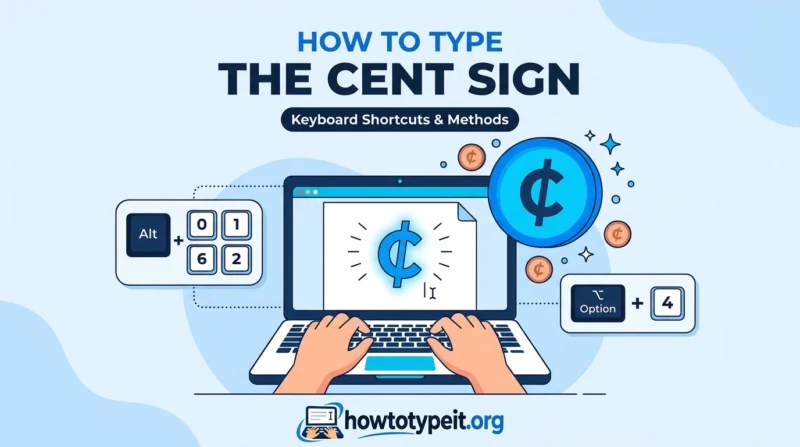
Quick Answer: How to Type the Cent Sign (¢)
The cent sign (¢) represents fractional monetary values in financial documents, price tags, and spreadsheets. Typing this glyph requires operating system shortcuts, HTML entities, or UNICODE values depending on the active software environment.
Windows ALT Code
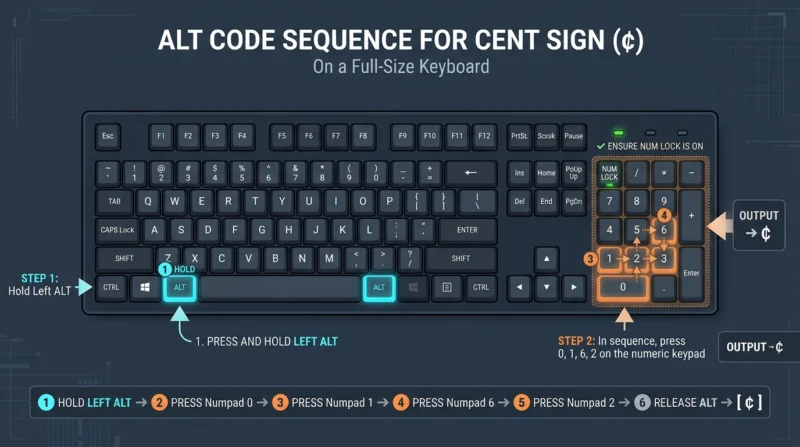
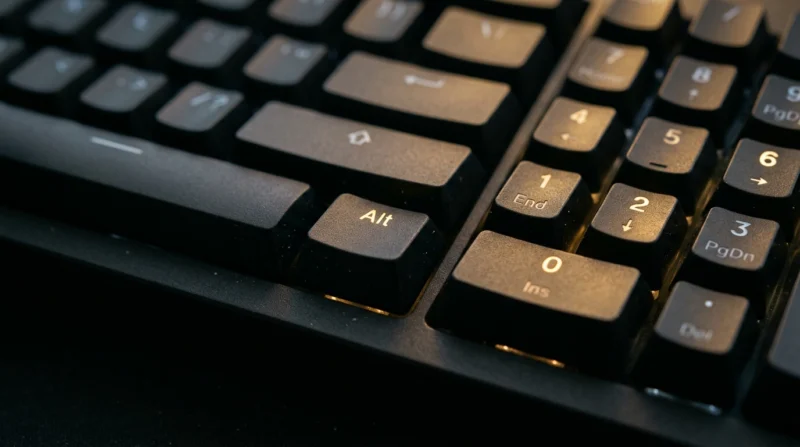
Windows users with a full-size keyboard can generate the cent symbol using the decimal ASCII code point. Press and hold the ALT key, type 0162 on the numeric keypad, and release ALT.
Mac Shortcut
macOS streamlines glyph entry through direct modifier combinations. Pressing Option + 4 simultaneously produces the cent sign instantly across Apple applications.
Linux and Mobile Input
Linux environments use UNICODE hexadecimal entry sequences by pressing CTRL + SHIFT + U, typing 00A2, and pressing Enter. Mobile devices access the symbol via the touch keyboard symbol menus.
Typing the Cent Sign on Windows
Using the Numeric Keypad (ALT + 0162)
Windows ALT codes rely on the system ANSI code page. To input the cent sign:
- Ensure that your keyboard’s NumLock indicator light is active.
- Press and hold down the left ALT key.
- Type the exact sequence 0, 1, 6, 2 on the dedicated numeric keypad. Do not use the row of number keys across the top of the keyboard.
- Release the ALT key to render the ¢ character.
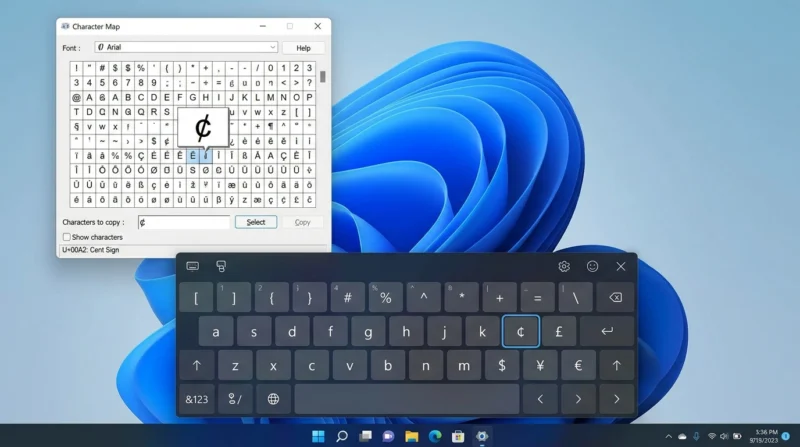
If your laptop lacks a physical numeric keypad, use the Windows On-Screen Keyboard utility (WIN + R, type osk, and press Enter) to access a virtual NUMPAD.
Using the Windows Emoji and Symbol Panel
Modern Windows builds feature a built-in symbol picker. Press WIN + . (Windows Key plus Period) to open the emoji and symbol panel. Navigate to the symbols category (omega icon) and locate the currency section to insert the cent sign into documents or chat fields.
Typing the Cent Sign on macOS
Using the Option Key Shortcut
Apple keyboards map common currency symbols directly to standard modifier keys. By default, pressing Option + 4 generates the cent sign. If your keyboard layout uses alternative international bindings, verify your input source preferences in System Settings.
Using the Character Viewer Palette
For advanced typographic access, press Control + Command + Space to launch the Character Viewer. Type cent into the search bar to locate the exact UNICODE character for insertion.
Linux, HTML, and UNICODE Specifications
Ubuntu and Linux UNICODE Input
Linux distributions running GNOME or compatible desktop environments support direct UNICODE composition. Press CTRL + SHIFT + U together. An underlined letter u appears on screen. Type 00A2 and press Enter or Space to output the cent sign.
HTML Entities and CSS Codes
Web developers embed the cent sign safely across browsers using HTML entity names or numeric codes:
- Named Entity: ¢
- Decimal Entity: ¢
- Hexadecimal Entity: ¢
- CSS Escape Code: 0A2
Frequently Asked Questions
What is the standard Windows ALT code for the cent sign?
The standard Windows ALT code for the cent sign (¢) is ALT + 0162, typed using the numeric keypad while holding down the ALT key.
How do you type the cent sign on a Mac?
On macOS, you can instantly type the cent sign by pressing the Option + 4 keys simultaneously.
Why is my ALT code not working on my Windows laptop?
ALT codes require a dedicated numeric keypad. If you are using a compact laptop without a NUMPAD, you must enable NumLock on an embedded keypad layer or use the Windows Period key (.) emoji and symbol menu.
What is the UNICODE code point for the cent sign?
The official UNICODE code point for the cent sign is U+00A2, with a decimal value of 162.