

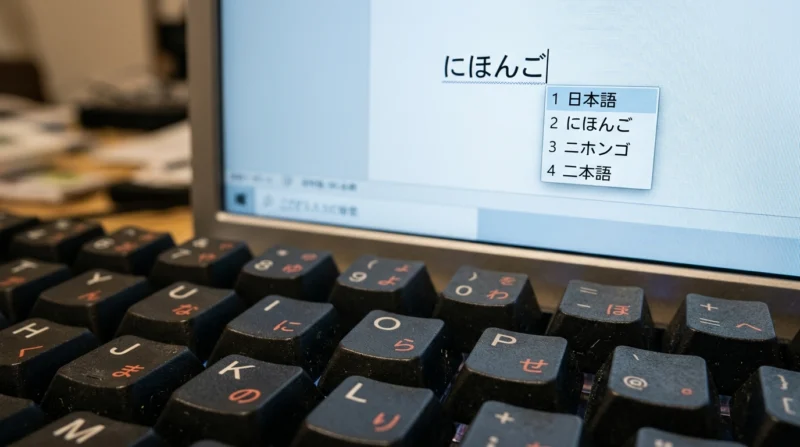
Understanding Japanese Input Systems
Typing Japanese text requires an Input Method Editor (IME) rather than standard numeric ALT codes. Because the Japanese writing system combines Hiragana, Katakana, and thousands of Kanji characters, standard QWERTY keyboards cannot map every glyph directly to a single key.
Why ALT Codes Don’t Work for Japanese
Traditional ASCII and ANSI character tables support a limited range of western scripts. While numeric codes can generate European accented letters or symbols, they cannot handle thousands of ideographic Japanese characters efficiently. Attempting to memorize code points for Japanese is impractical due to the massive scale of the script.
The Role of the Japanese IME
The IME acts as an intermediary translation layer between standard keystrokes and system text display. Users type phonetic Latin characters known as Romaji, which the software converts into corresponding Hiragana. Pressing the spacebar triggers candidate menus to convert Hiragana into Katakana or appropriate Kanji.
| Symbol / Script | Romaji Input Example | UNICODE HEX | HTML Decimal Entity |
|---|---|---|---|
| あ | a | U+3042 | あ |
| い | i | U+3044 | い |
| ア | a | U+30A2 | ア |
| 日 | ni / hi | U+65E5 | 日 |
| 本 | hon | U+672C | 本 |
| 語 | go | U+8A9E | 語 |
How to Type Japanese Letters on Windows
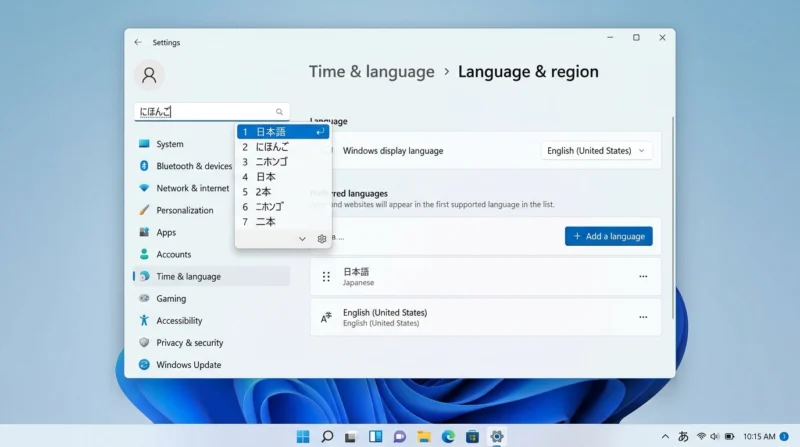
Microsoft Windows features a built-in Japanese IME that activates once the language package is installed. Users type phonetic input and convert characters on the fly across all desktop applications.
Enabling the Japanese Keyboard
Navigate to Windows Settings, select Time & Language, click Language & Region, and add Japanese. Once installed, an input indicator appears in the system tray. Click the indicator or press WIN + SPACE to select the Japanese IME.
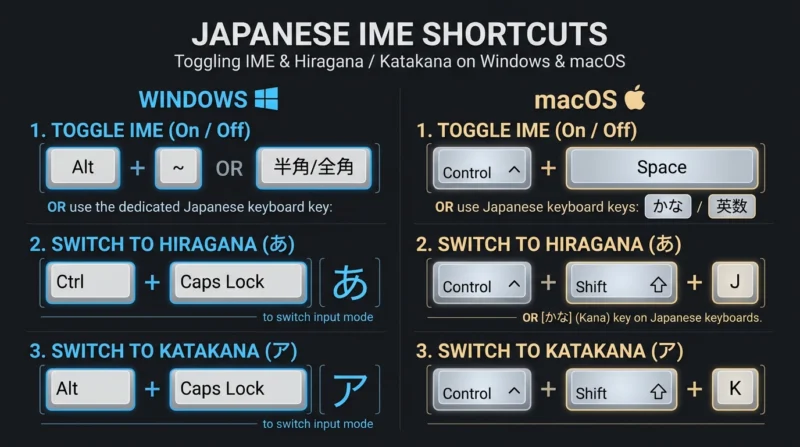
Essential Windows IME Shortcuts
Quickly manage conversion modes using hardware shortcuts. Press ALT + ` (Backquote) to toggle the IME on or off. Use CTRL + CAPS LOCK to force Hiragana mode, or ALT + CAPS LOCK for Katakana mode. Press SHIFT + CAPS LOCK to return to direct Romaji input.
How to Type Japanese Letters on Mac
macOS offers robust native support for Japanese through dedicated input sources.
Adding Japanese Input Sources
Open System Settings, click Keyboard, locate Text Input, and click Edit next to Input Sources. Click the plus button, find Japanese, and select either Romaji or Kana based on personal preference.
Switching and Converting on macOS
Toggle between active input sources using CONTROL + SPACE or the Globe key. Type phonetic spelling, then press the Spacebar to open the candidate window for Kanji selection. Press RETURN to confirm the selection.
Typing Japanese in Google Docs and Microsoft Word
Word processors and cloud document editors rely entirely on the underlying operating system IME to process Japanese keystrokes.
Using System IME in Document Editors
Enable the Japanese IME in Windows or macOS before typing in Microsoft Word or Google Docs. Characters convert directly within the document cursor without requiring special insertion menus.
Google Docs Input Tools Shortcut
For web-only input without installing OS language packs, use Google Input Tools. Press CTRL + ALT + SHIFT + K on Windows or CMD + OPTION + SHIFT + K on Mac to activate virtual multi-language input.
Typing Japanese on Mobile Devices
Smartphones and tablets utilize software touch keyboards configured for Japanese entry.
iOS Setup and Romaji Keyboards
Open iOS Settings, tap General, then Keyboard. Select Keyboards, add New Keyboard, and choose Japanese. Select either Romaji for standard QWERTY phonetic typing or Kana for the traditional flick-input layout.
Android Japanese Input Configuration
Access Android Settings, tap System, then Languages & Input. Select On-screen keyboard, choose Gboard, tap Languages, and add Japanese. Pick the preferred keyboard layout configuration to begin typing with predictive suggestion bars.
UNICODE and HTML Entities for Japanese Characters
Web developers embed Japanese characters directly into markup using numeric entities when direct input is unavailable.
HEX and Decimal Encoding
Every Japanese glyph maps to a unique hexadecimal and decimal code point in the UNICODE standard. For example, the character 字 corresponds to UNICODE HEX U+5B57 and decimal value 23383.
Using Numeric Entities in Web Design
Insert Japanese text into HTML source code safely by using decimal or hexadecimal entity structures. Write the character 字 as 字 or 字 to ensure universal browser rendering regardless of client-side font availability.
Frequently Asked Questions
Can I type Japanese letters using standard Windows ALT codes?
No, Japanese is not typed using ALT codes because it relies on phonetic Romaji conversion through an Input Method Editor (IME).
How do I turn on the Japanese IME on Windows?
You can quickly toggle the Japanese IME on and off by pressing ALT + ` once the Japanese keyboard layout is installed.
How do I switch between Hiragana and Katakana on Windows?
Press CTRL + CAPS LOCK to switch to Hiragana mode, or ALT + CAPS LOCK to switch to Katakana mode.
How do I add a Japanese keyboard on a Mac?
Open System Settings, navigate to Keyboard, locate Input Sources, click the plus button, search for Japanese, and select either Kana or Romaji.