
| System / Method | Shortcut or Code | Notes |
|---|---|---|
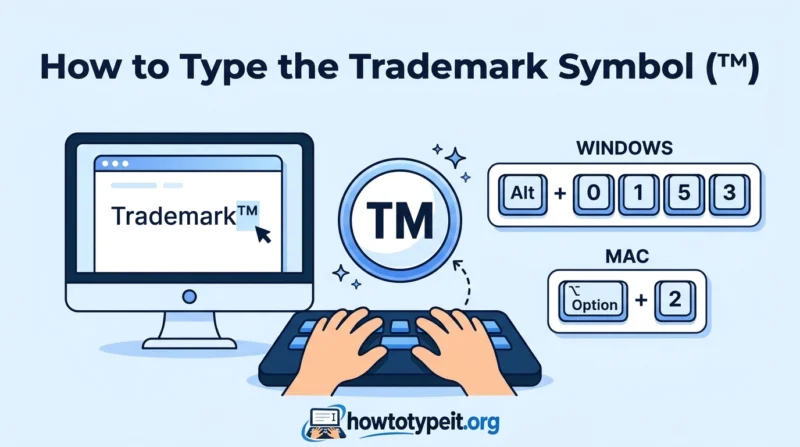
| Windows ALT Code | ALT + 0153 | Use dedicated numeric keypad |
| Mac Shortcut | Option + 2 | Direct key combination |
| Word Shortcut | 2122 then ALT + X | Converts HEX code to UNICODE glyph |
| UNICODE | U+2122 | Standard hexadecimal reference |
| HTML Entity | ™ or ™ | Web development safe strings |
Quick Copy and Paste Trademark Symbol
If you need to drop the trademark sign into a document immediately without memorizing keystrokes, highlight and copy the glyph below:
™
This character corresponds to the official Letterlike Symbols block in the UNICODE standard and renders cleanly across modern operating systems, web browsers, and desktop publishing suites.
Instant Copy Operations
Modern web clipboards support direct DOM selection. Clicking the primary hero action box at the top of this guide loads the character directly into your system memory buffer for immediate deployment in fields where keyboard shortcuts are restricted.
How to Type the Trademark Symbol on Windows
Windows environments provide several reliable pathways to insert the trademark glyph, ranging from physical numeric keypad inputs to automatic text expansion utilities within productivity software.
Using the Numeric Keypad ALT Code
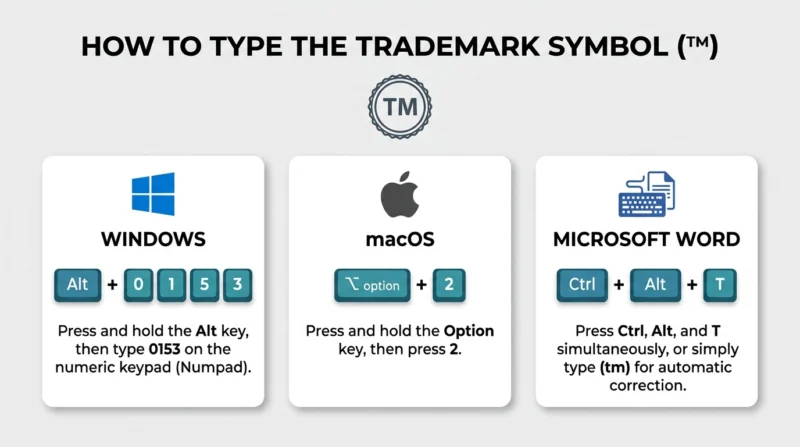
To generate the trademark symbol using a physical keyboard on Windows, ensure your Num Lock is active. Press and hold down the ALT key, then press 0, 1, 5, 3 in sequence on your dedicated numeric keypad. Release the ALT key to render the ™ character.
Note that standard top-row number keys do not register correctly for ALT codes. Laptops without a physical numeric keypad must utilize the built-in Windows Character Map utility or the Microsoft PowerToys Quick Accent module.
Using Microsoft Office Autocorrect
Microsoft Word, Excel, and Outlook feature native autocorrect rules designed for legal and branding annotations. Type an open parenthesis, lowercase letters t and m, and a closing parenthesis (tm). The application instantly converts the string into the formal ™ symbol.
How to Type the Trademark Symbol on macOS
Apple macOS streamlines symbol injection through direct modifier key bindings integrated into the standard system keyboard layout.
Using Keyboard Shortcuts
To output the trademark symbol on a Mac, press and hold the Option key (sometimes labeled ⌥), then press the number 2 key on the main keyboard row. Releasing both keys outputs the ™ glyph instantly.
Using the Character Viewer
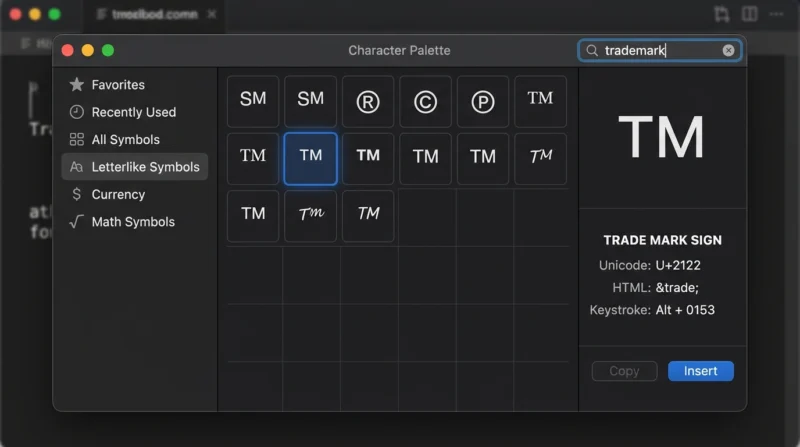
When working within applications that do not respond to standard modifier keys, press Control + Command + Space to launch the macOS Character Viewer. Type “trademark” into the search field to filter the glyph library and double-click the result to insert it.
Technical Specifications and UNICODE Details
Understanding the underlying data structure of the trademark symbol ensures proper character encoding, database storage, and cross-platform compatibility without rendering artifacts.
UNICODE Character Data
The trademark symbol is officially designated under the UNICODE standard as U+2122. Its decimal representation is 8482. In normalization processes like NFKC and NFKD, the compatibility decomposition maps the character to a sequence consisting of an uppercase letter T and an uppercase letter M.
HTML Entities
Web developers can include the trademark symbol safely within markup using standard character references. The named entity is ™ and the numeric decimal entity is ™. Both methods guarantee identical rendering across all modern web standards.
Frequently Asked Questions
How do I type the trademark symbol on Windows?
Hold down the ALT key and type 0153 on your numeric keypad to generate the ™ symbol.
What is the keyboard shortcut for the trademark symbol on a Mac?
Press Option + 2 on your Mac keyboard to insert the trademark symbol.
What is the UNICODE code point for the trademark symbol?
The trademark symbol (™) corresponds to UNICODE code point U+2122 and decimal value 8482.
How can I automatically insert the trademark symbol in Microsoft Word?
Type parentheses containing ‘tm’ like ™ and Microsoft Word will automatically convert it into the ™ character.