
| System / Method | Shortcut or Code | Notes |
|---|---|---|
| Windows ALT Code | ALT + 0167 | Use numeric keypad |
| Mac Shortcut | Option + 6 | Standard US layout |
| Word HEX Conversion | 00A7 then ALT + X | Windows Microsoft Word |
| UNICODE | U+00A7 | Standard HEX reference |
| HTML Entity | § or § | Web safe encoding |
Quick Copy and Paste
Instant Access
The section symbol, denoted as § and commonly referred to as the silcrow, section sign, or double-s, appears frequently in legal codes, academic manuscripts, and technical documentation. When keyboard shortcuts fail or hardware layouts lack a dedicated key, copying the character directly from a reference panel provides the fastest resolution.
Where It Is Used
Legal professionals utilize the section symbol to reference specific paragraphs, statutes, and codes within legal briefs. Textbook authors use the sign to denote sub-sections and indexes. Software developers and gaming community moderators occasionally use the character for text formatting codes in custom configuration files.
How to Type the Section Symbol on Windows
Using the ALT Code
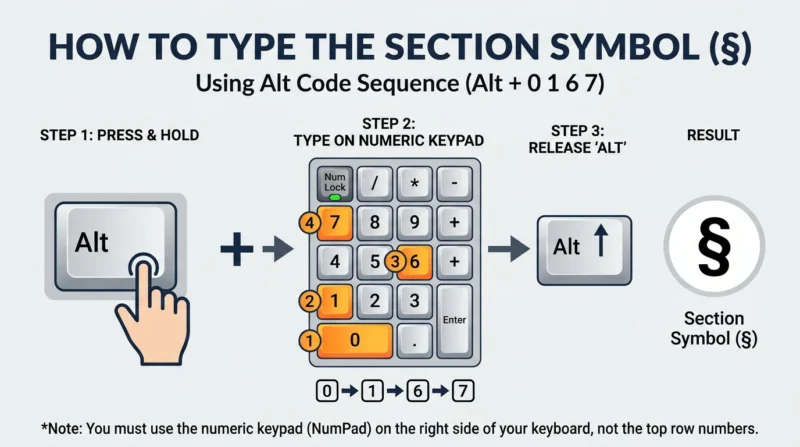
Windows operating systems support direct character input through numeric keypad codes. To generate the section symbol:
- Ensure Num Lock is active on your keyboard.
- Press and hold the ALT key.
- Type 0, 1, 6, 7 sequentially on the numeric keypad.
- Release the ALT key to render the § glyph.
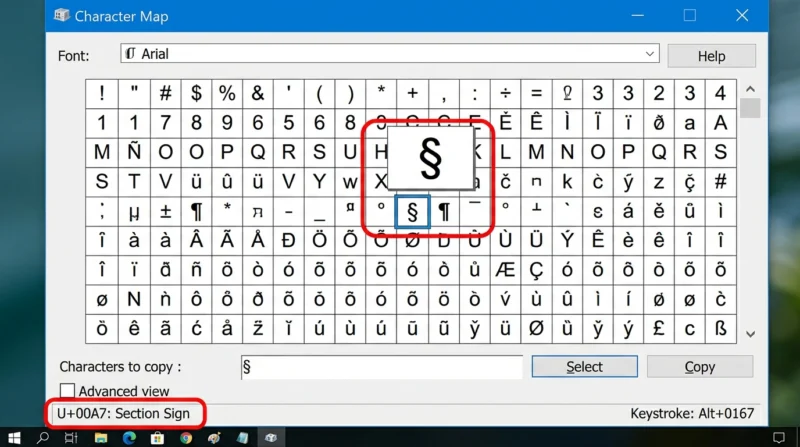
Laptop users without a physical numeric keypad must enable the software Num Lock layer or use the Windows Character Map utility accessed by pressing WIN + R, typing charmap, and pressing Enter.
Using Microsoft Word HEX Conversion
Microsoft Word includes a native UNICODE translation feature. Type the hexadecimal code 00A7 directly into your document workspace, then press ALT + X simultaneously. Word instantly converts the text string into the section symbol.
How to Type the Section Symbol on Mac
Using Keyboard Shortcuts
macOS maps standard special characters to modifier key combinations. On a standard US layout keyboard, press Option + 6 to insert the section symbol directly into any text field.
Using the Character Viewer
When working with specialized regional layouts where modifier shortcuts differ, open the macOS Character Viewer by pressing Control + Command + Space. Type “section” into the search field to locate and insert the symbol.
Technical Character Specifications
UNICODE and HEX Codes
Under the UNICODE standard, the section symbol is formally registered at code point U+00A7. Its decimal equivalent is 167, and its hexadecimal reference value is 0xA7.
HTML Entities
Web developers embedding the symbol directly into HTML source code can use semantic entity names or numerical references:
- Named entity:
§ - Decimal entity:
§ - Hexadecimal entity:
§
Frequently Asked Questions
What is the ALT code for the section symbol?
The reliable Windows ALT code for the section symbol (§) is ALT + 0167 typed on the numeric keypad.
How do I type the section symbol in Microsoft Word?
In Microsoft Word for Windows, type 00A7 and immediately press ALT + X to convert the code into §.
How do I make a section symbol on a Mac?
On standard macOS keyboard layouts, you can type the section symbol by pressing Option + 6.
What is the UNICODE value for the section sign?
The UNICODE code point for the section symbol is U+00A7, with a decimal value of 167.