
Enabling Arabic Keyboards on Desktop
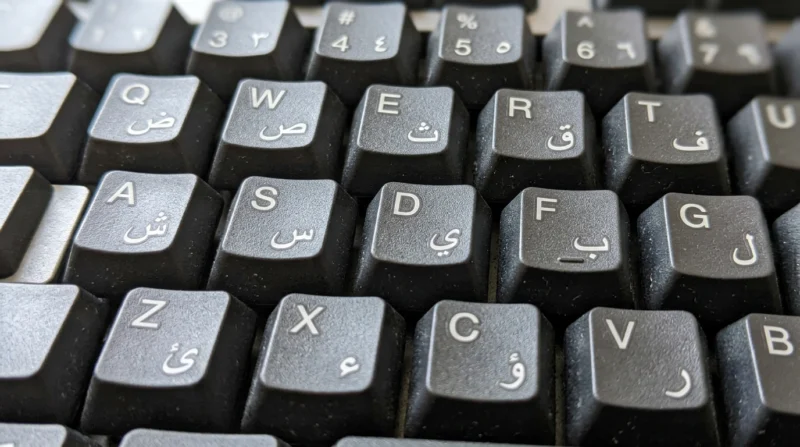
Typing Arabic letters accurately requires proper operating system configuration. Because standard QWERTY keyboards lack native Arabic character printing, activating the software-level Arabic layout maps physical keys to Arabic alphabet glyphs.
Windows Setup
To enable the Arabic keyboard layout on Windows 10 and Windows 11:
- Open Windows Settings by pressing WIN + I.
- Navigate to Time & language then select Language & region.
- Click Add a language, type Arabic in the search filter, select your preferred regional variant (such as Arabic (Saudi Arabia) or Arabic (Egypt)), and click Next.
- Uncheck optional feature checkboxes if desired, then click Install.
- Switch to the Arabic layout at any time by pressing WIN + SPACE or ALT + SHIFT.
Mac OS Configuration
To add the Arabic input source on macOS:
- Open System Settings (or System Preferences).
- Click on Keyboard in the sidebar.
- Under Text Input, click Edit next to Input Sources.
- Click the + button, select Arabic from the left column, choose the layout variant, and click Add.
- Switch between input languages using CONTROL + SPACE or the menu bar input menu.
Typing Arabic Letters and Diacritics

Once the Arabic keyboard layout is active, physical keys correspond to specific Arabic letters. Vowel marks, known as Harakat, are appended using modifier combinations.
Core Alphabet Layout
The following reference table maps the core Arabic character set alongside desktop input parameters.
| Arabic Letter | UNICODE HEX | ALT Code / Windows Input | Mac Shortcut |
|---|---|---|---|
| ا | U+0627 | Arabic Layout Key | Arabic Layout Key |
| ب | U+0628 | Arabic Layout Key | Arabic Layout Key |
| ت | U+062A | Arabic Layout Key | Arabic Layout Key |
| ث | U+062B | Arabic Layout Key | Arabic Layout Key |
| ج | U+062C | Arabic Layout Key | Arabic Layout Key |
| ح | U+062D | Arabic Layout Key | Arabic Layout Key |
| خ | U+062E | Arabic Layout Key | Arabic Layout Key |
| د | U+062F | Arabic Layout Key | Arabic Layout Key |
| ذ | U+0630 | Arabic Layout Key | Arabic Layout Key |
| ر | U+0631 | Arabic Layout Key | Arabic Layout Key |
| ز | U+0632 | Arabic Layout Key | Arabic Layout Key |
| س | U+0633 | Arabic Layout Key | Arabic Layout Key |
| ش | U+0634 | Arabic Layout Key | Arabic Layout Key |
| ص | U+0635 | Arabic Layout Key | Arabic Layout Key |
| ض | U+0636 | Arabic Layout Key | Arabic Layout Key |
| ط | U+0637 | Arabic Layout Key | Arabic Layout Key |
| ظ | U+0638 | Arabic Layout Key | Arabic Layout Key |
| ع | U+0639 | Arabic Layout Key | Arabic Layout Key |
| غ | U+063A | Arabic Layout Key | Arabic Layout Key |
| ف | U+0641 | Arabic Layout Key | Arabic Layout Key |
| ق | U+0642 | Arabic Layout Key | Arabic Layout Key |
| ك | U+0643 | Arabic Layout Key | Arabic Layout Key |
| ل | U+0644 | Arabic Layout Key | Arabic Layout Key |
| م | U+0645 | Arabic Layout Key | Arabic Layout Key |
| ن | U+0646 | Arabic Layout Key | Arabic Layout Key |
| هـ | U+0647 | Arabic Layout Key | Arabic Layout Key |
| و | U+0648 | Arabic Layout Key | Arabic Layout Key |
| ي | U+064A | Arabic Layout Key | Arabic Layout Key |
| ء | U+0621 | Arabic Layout Key | Arabic Layout Key |
| ى | U+0649 | Arabic Layout Key | Arabic Layout Key |
Harakat and Vowel Mark Shortcuts
Arabic diacritics are applied immediately after typing the target letter using SHIFT combinations on standard Arabic layouts:
- SHIFT + Q = َ (Fatha)
- SHIFT + A = ِ (Kasra)
- SHIFT + E = ُ (Damma)
- SHIFT + X = ْ (Sukun)
- SHIFT + ~ = ّ (Shadda)
- SHIFT + W = ً (Tanween Fath)
- SHIFT + S = ٍ (Tanween Kasr)
- SHIFT + R = ٌ (Tanween Damm)

Alternative Methods for Typing Arabic
When operating systems lack pre-installed Arabic language packs, alternative workflows allow reliable character input.
Online Transliteration Tools
Transliteration keyboards convert Latin keyboard inputs into native Arabic characters in real time. For example, typing salam outputs سلام, typing 7abibi outputs حبيبي, and typing 9alam outputs قلم. This approach requires no system configuration.
Using the Character Map
On Windows, users can launch the built-in Character Map utility via the Run dialog (WIN + R, type charmap). Searching for Arabic blocks allows users to select individual glyphs, copy them to the clipboard, and paste them into documents.
Frequently Asked Questions
How do I switch between English and Arabic keyboards on Windows?
You can quickly switch between installed keyboard layouts by pressing ALT + SHIFT or WIN + SPACE.
How do I type vowel marks (Harakat) in Arabic?
Harakat are typed using SHIFT combinations right after the letter, such as SHIFT + Q for Fatha (َ) and SHIFT + A for Kasra (ِ).
Can I type Arabic without installing a keyboard layout?
Yes, you can use online Arabic transliteration tools or virtual keyboards to type and instantly copy text to your clipboard.
How do I type letter variants like Alif with Hamza on mobile?
You can access letter variants such as أ, إ, and آ by long-pressing the base Alif key on your mobile keyboard.