

Symbol Reference Matrix
| Character | UNICODE HEX | Decimal Code | Windows ALT Code | Mac Input Method | HTML Entity |
|---|---|---|---|---|---|
| á | U+00E1 | 225 | ALT + 0225 | OPT + E, then A | á |
| é | U+00E9 | 233 | ALT + 0233 | OPT + E, then E | é |
| í | U+00ED | 237 | ALT + 0237 | OPT + E, then I | í |
| ó | U+00F3 | 243 | ALT + 0243 | OPT + E, then O | ó |
| ú | U+00FA | 250 | ALT + 0250 | OPT + E, then U | ú |
| ñ | U+00F1 | 241 | ALT + 0241 | OPT + N, then N | ñ |
| ü | U+00FC | 252 | ALT + 0252 | OPT + U, then U | ü |
| ç | U+00E7 | 231 | ALT + 0231 | OPT + C | ç |
| ß | U+00DF | 223 | ALT + 0223 | OPT + S | ß |
| ø | U+00F8 | 248 | ALT + 0248 | OPT + O | ø |
| ° | U+00B0 | 176 | ALT + 0176 | OPT + SHIFT + 8 | ° |
| , | U+2014 | 8212 | ALT + 0151 | OPT + SHIFT + - | — |
Understanding the Fundamentals of ALT Commands
What Are Windows ALT Codes?
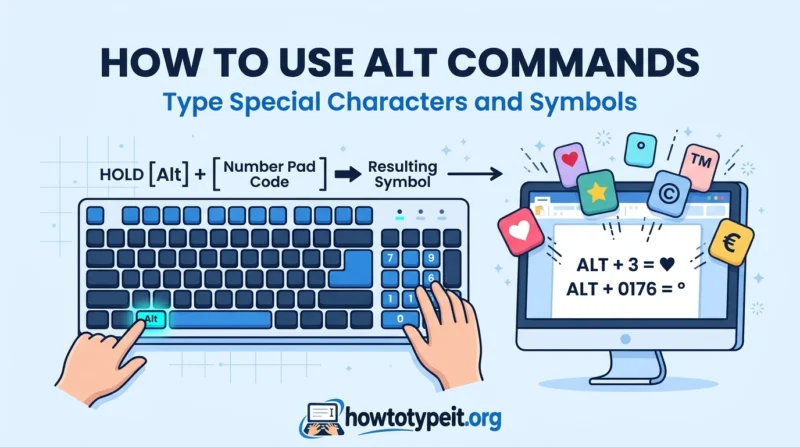
Windows ALT codes are legacy keyboard shortcuts that allow users to generate characters absent from standard keyboards by processing numeric sequences entered through the physical numeric keypad. When you press and hold the ALT key while typing numbers on the NUMPAD, the operating system intercepts the keystrokes, translates the decimal code page value, and renders the corresponding glyph onto the active text field.
Key Differences Between Windows and Mac Input
Operating systems handle character insertion through entirely different structural logic. Windows relies strictly on numeric code pages processed via dedicated hardware keypads. Apple macOS uses the OPTION key modifier combined with dead-key sequences or the native Character Viewer utility. Consequently, Windows ALT codes do not function natively on macOS, Linux, or ChromeOS devices unless specialized hardware emulation layers are installed.
How to Type Special Characters Using Windows ALT Codes
Step-by-Step Instructions for Keypad Entry
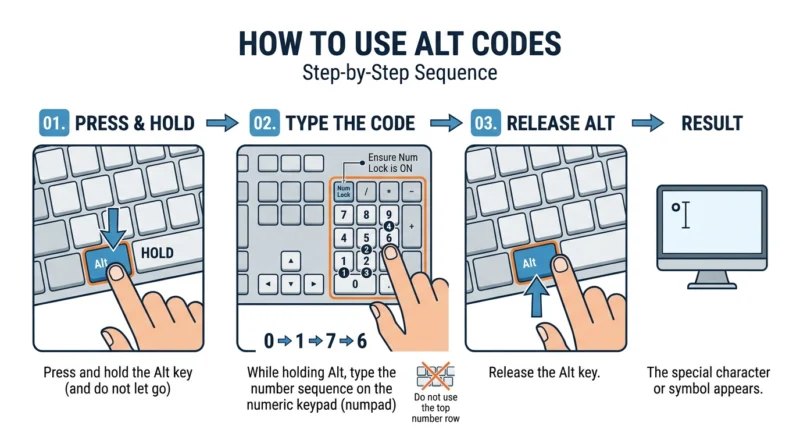
Executing a successful Windows ALT code sequence requires precise finger coordination and hardware validation. Follow these exact operational steps:
- Ensure the NUM LOCK indicator light on your keyboard is active.
- Position your cursor inside any text input field, word processor, or web form.
- Press and hold down the left ALT key. Do not release it.
- Using only the physical numeric keypad, type the required decimal code (for example, type 0176 for the degree symbol °).
- Release the ALT key. The rendered character will appear immediately.
Troubleshooting Num Lock and Laptops Without Keypads
Compact keyboards and tenkeyless (TKL) laptops frequently omit the dedicated numeric keypad. Attempting to use the horizontal row of numbers above the QWERTY keys will fail to generate ALT codes. To bypass this hardware restriction, open the Windows On-Screen Keyboard utility by pressing WIN + CTRL + O, click the Options button, check the box to turn on the numeric keypad, and enable NUM LOCK directly on the virtual interface. Alternatively, you can use advanced utility remappers or switch to software-level UNICODE conversion tools.
Advanced UNICODE Input with Word ALT + X
Converting Hexadecimal Codes Instantly
Microsoft Word, Outlook, and select Office applications support an advanced text conversion mechanic known as ALT + X. This method bypasses decimal keypad restrictions entirely by utilizing hexadecimal UNICODE values. To use this shortcut, type the four-character hexadecimal code (such as 2014 for an em dash) directly into your document, and immediately press ALT + X. The plain text characters will instantly transform into the target typographical glyph. Pressing ALT + X a second time converts the glyph back into its raw hexadecimal code.
Where the ALT + X Shortcut Works
While the ALT + X shortcut is native to Microsoft Word and Outlook message bodies, community contributors on developer forums and technical subreddits have confirmed limited functionality in other environments. For instance, certain markdown editors and modern text fields support the inverse UNICODE conversion method where users type CTRL + SHIFT + U followed by the HEX code and ENTER on Linux-based GNOME environments.

Alternative Input Methods for macOS and Browsers
Using the Option Key and Dead Keys
Apple computers utilize modifier combinations centered around the OPTION key. To type accented characters efficiently, macOS employs dead keys. For example, pressing OPTION + E activates an accent grave or acute dead state (the screen pauses momentarily waiting for the base letter), and pressing A outputs the finished accented letter á. Standalone symbols can be accessed by pressing OPTION alone or alongside SHIFT.
Entering Symbols in Google Docs
When drafting documents inside Google Docs via web browsers, input behavior depends on the host operating system. Windows users inside Chrome must use physical numeric keypad ALT codes, whereas Mac users rely on native OPTION key combinations. For symbols missing from both input sets, users can access the Insert menu within Google Docs to pull up the complete character map search utility.
Frequently Asked Questions
Why aren’t my Windows ALT codes working?
ALT codes will fail if your numeric keypad’s Num Lock is turned off, if you are using the horizontal number row instead of the physical numeric keypad, or if the active software application blocks legacy character input.
How do I use ALT codes on a laptop without a numeric keypad?
You can open the Windows On-Screen Keyboard utility using WIN + CTRL + O, click Options, and enable the virtual numeric keypad, or use Microsoft Word’s ALT + X hexadecimal shortcut method instead.
What is the fastest way to type any symbol in Microsoft Word?
Type the character’s four-digit UNICODE hexadecimal value directly into the document, then immediately press ALT + X to convert it into the target symbol.
Do Windows ALT codes work on a Mac?
No, macOS does not support Windows ALT codes. Mac users instead rely on OPTION key combinations, dead keys, or the built-in Character Viewer utility.