
Comprehensive Emoji Reference Matrix
| Symbol | Name | UNICODE HEX | Windows Shortcut | Mac Shortcut |
|---|---|---|---|---|
| 😀 | Grinning Face | U+1F600 | WIN + . or WIN + ; | CTRL + CMD + SPACE |
| 🎉 | Party Popper | U+1F389 | WIN + . or WIN + ; | CTRL + CMD + SPACE |
| 😊 | Smiling Face with Smiling Eyes | U+1F60A | WIN + . or WIN + ; | CTRL + CMD + SPACE |
| ❤️ | Red Heart | U+2764 | WIN + . or WIN + ; | CTRL + CMD + SPACE |
| 🚀 | Rocket | U+1F680 | WIN + . or WIN + ; | CTRL + CMD + SPACE |
| ✨ | Sparkles | U+2728 | WIN + . or WIN + ; | CTRL + CMD + SPACE |
Using Native Keyboard Shortcuts to Insert Emojis
Opening the Emoji Panel on Windows

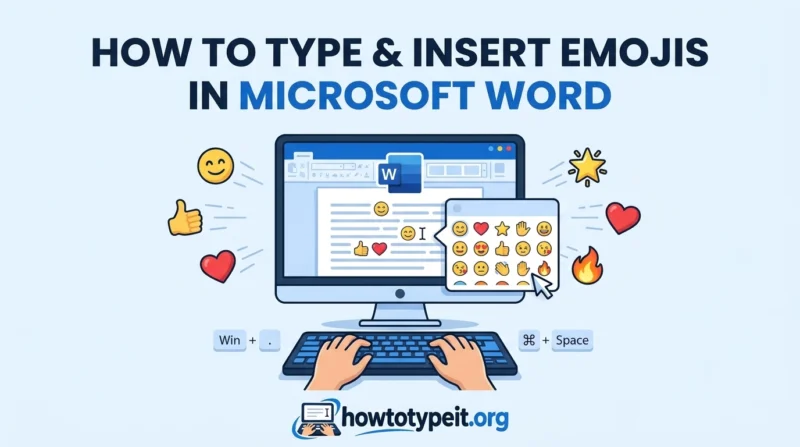
Microsoft Windows provides a built-in character panel accessible from any text field, including Microsoft Word. To trigger this picker, click inside your Word document where you want the icon to appear, then press WIN + . (period) or WIN + ; (semicolon). The emoji flyout menu surfaces immediately near your cursor. You can browse categories such as smileys, animals, celebrations, and symbols, or type a keyword directly into the search bar to filter icons instantly. Click your chosen glyph to insert it into your document, and press ESC to close the panel.
Accessing the Character Viewer on Mac
For macOS users running desktop Microsoft Word, the system provides an equivalent native interface called the Character Viewer. Position your cursor in the document text area, and press CTRL + CMD + SPACE. A compact palette window appears on screen. Expand this window by clicking the small icon in the top right corner if you need to view the full categorized directory of emojis, symbols, and pictographs. Double-click any emoji entry to insert it directly into your Word file.
Leveraging UNICODE HEX Codes and ALT + X in Word
How the ALT + X Conversion Works
Microsoft Word includes a proprietary text conversion feature that translates hexadecimal UNICODE strings directly into formatted characters. This workflow bypasses external menus entirely. Type the target hexadecimal code directly into your document, then immediately press ALT + X. Word reads the alphanumeric string immediately preceding your cursor and swaps it for the corresponding graphical symbol.
Popular Emoji HEX Codes for Instant Typing
You can execute this text conversion method using standard UNICODE HEX values. For instance, typing 1F600 followed by ALT + X renders the grinning face emoji (😀). Similarly, entering 1F60D and pressing ALT + X generates the heart eyes emoji (😍). If you want to revert the emoji back to its hexadecimal code string, place your cursor immediately after the emoji and press ALT + X again.
Inserting Emojis via the Ribbon in Word for the Web
Navigating the Insert Menu
When working within Word for the Web inside a browser environment, system shortcut overrides or local OS pickers may behave differently depending on browser permissions. To maintain a consistent workflow, use the native application ribbon. Navigate to the top menu bar, click the Insert tab, and select the Emoji option from the available tool group.
Browsing More Emoji Categories Online
Clicking the initial emoji dropdown opens a curated panel of frequent icons. If you require a wider selection, click the More Emojis button at the bottom of the flyout menu. This launches a comprehensive sidebar containing categorized emoji libraries. Browse through the available selections and click your target icon to insert it at your active cursor location.

Creating Custom AutoCorrect Shortcuts for Frequent Emojis
Setting Up Text Replacement Rules
If you insert specific emojis frequently, opening system panels or typing full UNICODE HEX values slows down your workflow. Desktop Microsoft Word allows you to map custom text strings to specific emojis using the AutoCorrect utility. Open the desktop application, navigate to File, select Options, choose Proofing, and click the AutoCorrect Options… button.
Testing Your Custom Emoji Triggers
Inside the AutoCorrect configuration window, locate the Replace field and enter a unique text shortcut, such as ;party. In the adjacent With field, paste your target emoji character, such as 🎉. Click Add, then save your changes. Whenever you type ;party followed by a space or punctuation mark in your document, Word replaces the text string with your emoji automatically.
Frequently Asked Questions
How do I open the emoji picker on a Windows computer in Word?
Press the Windows key plus either the period (.) or semicolon (;) key to launch the built-in emoji panel.
What is the shortcut to open the emoji viewer on a Mac running Word?
Press Control + Command + Space on your Mac keyboard to open the Character Viewer and Emoji picker.
How does the ALT + X shortcut function for emojis in Microsoft Word?
Type the hexadecimal UNICODE code for the emoji, such as 1F60A, and immediately press ALT + X to convert it into an emoji.
Can I set up custom text shortcuts to type emojis automatically in Word?
Yes, you can configure custom text replacements through File > Options > Proofing > AutoCorrect Options in desktop Word.