

| System / Method | Shortcut or Code | Notes |
|---|---|---|
| Windows ALT Code | ALT + 36 | Use numeric keypad |
| Mac Shortcut | SHIFT + 4 | Standard QWERTY layout |
| Word Shortcut | 0024 then ALT+X | Converts HEX to glyph |
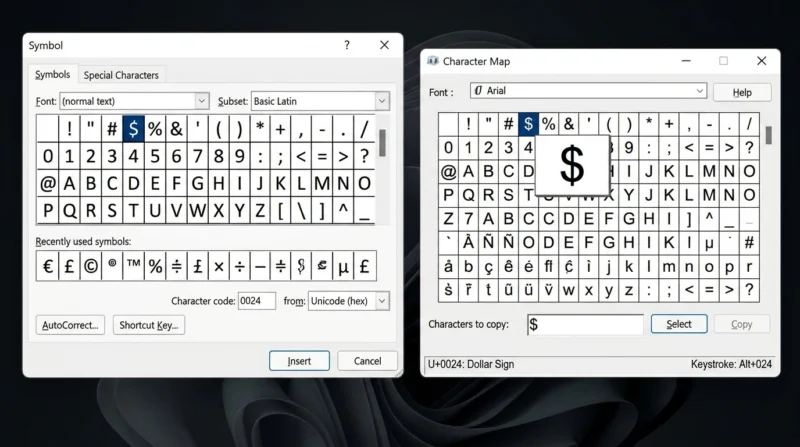
| UNICODE | U+0024 | Standard character reference |
| HTML Entity | $ or $ | Web safe formatting |
Quick Answer: How to Type the Dollar Symbol
Standard QWERTY Keyboards
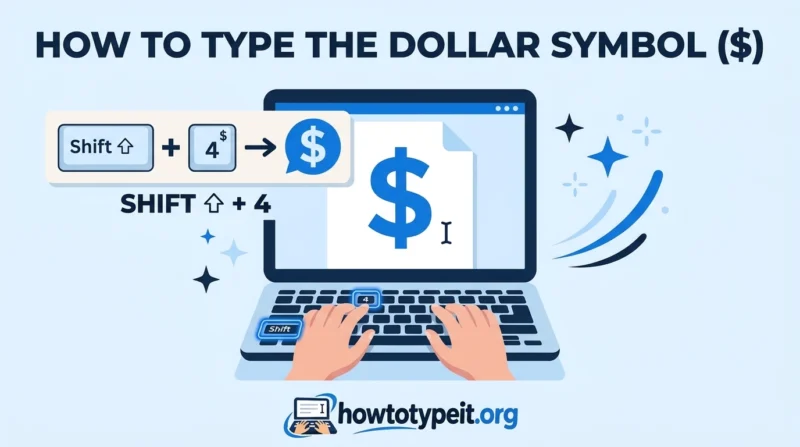
On nearly all standard English QWERTY layouts, typing the dollar symbol is achieved by pressing SHIFT + 4 on the primary alphanumeric keyboard row. This combination shares the keycap with the number 4.
Copy and Paste Shortcut
If your physical keyboard lacks a functional number row or uses an alternative layout configuration, use the one-click copy trigger at the top of this guide to place the symbol directly into your system clipboard for instant pasting.
Typing the Dollar Sign on Windows
Using the Number Row
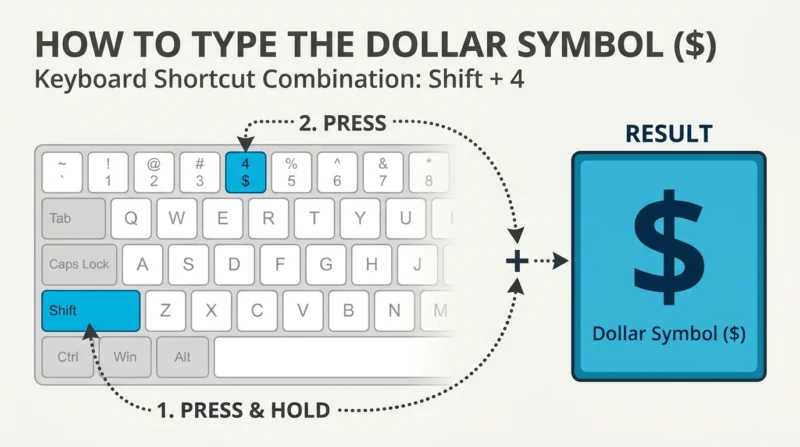
In standard Windows configurations, pressing SHIFT + 4 generates the dollar sign immediately. Ensure Caps Lock is disabled to prevent unintended character mapping behavior.
Using Windows ALT Codes
For keyboards lacking a functional number 4 key or when working inside specialized applications, hold down the ALT key while typing 3 and 6 on the numeric keypad, then release ALT to insert the $.
Microsoft Word HEX Code Shortcut
Inside Microsoft Word or Outlook, type the hexadecimal value 0024 and press ALT + X simultaneously. The text string transforms instantly into the dollar symbol.
Typing the Dollar Sign on Mac
Standard macOS Layouts
Apple hardware utilizing standard U.S. English keyboard layouts uses the exact same key combination as Windows. Press SHIFT + 4 to output the dollar symbol.
International Layout Considerations
Users operating macOS with ISO or European physical layouts may find the dollar symbol relocated to a dedicated key near the enter key or accessible via the Option modifier layer depending on regional language profiles.
Typing the Dollar Sign on Mobile Devices
iOS iPhone and iPad
Tap the 123 or symbols key on the software keyboard to switch from the alphabetical layout to the numeric and symbol layout. The dollar sign appears within the primary view.
Android Smartphones
Tap the symbol layout toggle key, typically labeled as ?12 or +=, to access the secondary character grid where the dollar sign resides. Long-pressing the currency key also reveals alternate currency options.
Frequently Asked Questions
How do I type the dollar symbol on a standard keyboard?
On almost all standard QWERTY keyboards, type the dollar symbol ($) by pressing SHIFT + 4.
What is the ALT code for the dollar sign on Windows?
The official Windows ALT code for the dollar sign is ALT + 36 using the numeric keypad.
How do I type the dollar sign in Microsoft Word?
Type the UNICODE value 0024 in Microsoft Word and immediately press ALT + X to convert it into a dollar symbol ($).
How do I find the dollar sign on an iPhone or Android phone?
Switch your mobile keyboard to the numbers and symbols layout by tapping the symbol key, then locate and tap the $ sign.